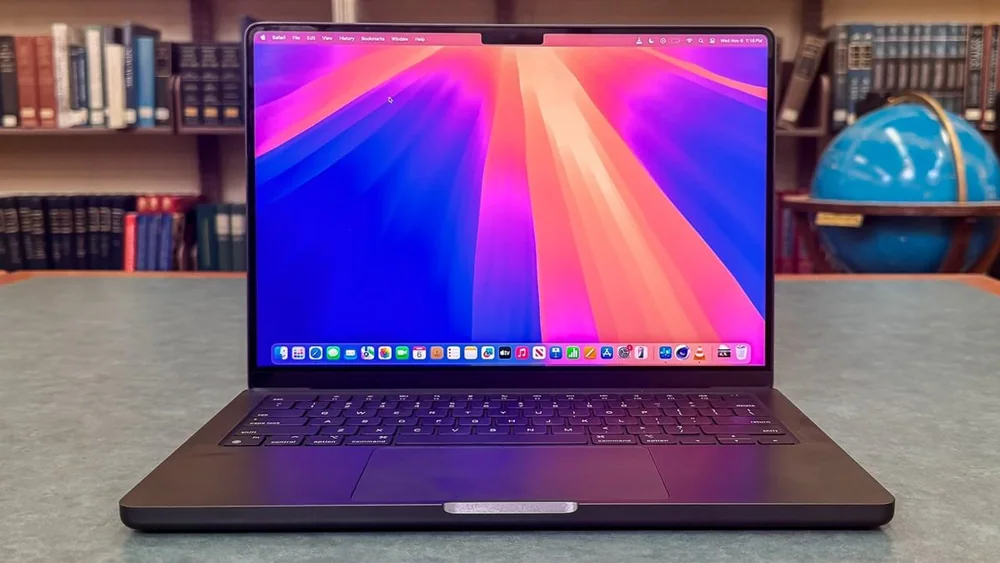
Laptop keyboards and touchpads: what makes them comfortable all day
Published
Small differences in key feel, layout, and touchpad behavior add up to big comfort differences over long typing and pointing sessions.
A laptop can have great specs and still be frustrating if the keyboard and touchpad do not fit your hands and habits. Comfort is not just preference. It affects speed, accuracy, and fatigue, especially if you type for hours, take notes in class, or do a lot of spreadsheet and email work. Because you touch these parts constantly, they often matter more than a slightly faster CPU. The tricky part is that keyboard and touchpad quality is not captured by a simple spec. You have to understand a few basics, then do a quick hands-on check. Once you know what to look for, you can predict whether a laptop will feel natural or whether you will spend months fighting missed keystrokes, awkward arrow keys, or a touchpad that clicks when you did not mean it to.
Reading time: 8 minutesBest for: Students, writers, office workers, and anyone who types or uses the touchpad for hours and wants fewer mistakes and less fatigue.
Key feel basics: travel, actuation, and why thin does not always mean bad
Key travel is how far a key moves down when you press it. More travel often feels cushier and can reduce bottoming out (hitting the hard stop), but it can also feel slower if the keys are mushy. Actuation is the point where the key press registers. A good keyboard has a clear, predictable actuation point so you do not have to press harder than necessary. Stability matters too. If a key wobbles side to side, it can feel imprecise, especially on larger keys like Shift and Enter.
Thin laptops often have less travel, but that does not automatically mean they are uncomfortable. A shallow keyboard can still feel great if the actuation is crisp and the keys are stable. The downside of very shallow designs is that they can punish heavy typists because you hit the bottom more often. If you type hard, look for a keyboard that feels controlled at speed, not just pleasant for a few sentences. Pay attention to how your fingers feel after a minute of fast typing, not just the first impression.
Layout consequences: arrow keys, function row, numpad, and where they help or annoy
Layout is where many long-term annoyances come from. Arrow keys are a common pain point. Half-height up and down arrows can be usable, but they increase mis-presses if you edit text a lot. The function row can be either dedicated function keys or media shortcuts by default. If you use F-keys for work or school apps, having to hold an extra Fn key all day gets old. Also check the placement of Delete, Home, End, and Page Up and Down if you write, code, or work in spreadsheets.
A numpad (number pad) can be great for accounting or data entry, but it usually shifts the main keyboard left. That can put your trackpad off-center and change your shoulder and wrist posture. Over time, that can feel awkward if you mostly type and use the touchpad. If you rarely enter long strings of numbers, you may be happier without a numpad and with a centered typing position. The practical rule is to choose the layout that matches your most frequent task, not the occasional one.
Touchpad realities: size, click mechanism, palm rejection, and gesture support
Touchpad size matters because it gives your fingers room for precise control and multi-finger gestures. But size is only helpful if palm rejection is good. Palm rejection is the laptop's ability to ignore accidental touches while you type. Poor palm rejection causes cursor jumps and random clicks, which can be maddening in documents and spreadsheets. Surface texture matters too. A smoother surface usually feels more consistent for slow, precise movements.
Click mechanism changes the feel. Some touchpads physically click at the bottom edge, which can feel stiffer near the top. Others use haptic click, which feels more uniform because it simulates a click without needing a hinge. Either can be good, but you want predictable clicking and easy drag actions. Also check gesture support in your operating system settings. If you rely on two-finger scrolling, three-finger app switching, or pinch-to-zoom, a touchpad that tracks cleanly at the edges and does not stutter will save time every day.
How to judge quickly: a 5 minute in store test and what to check in return windows
In five minutes, you can learn a lot. Type a paragraph at your normal speed, then type a few lines of numbers and symbols. Notice whether you bottom out hard, whether the spacebar and Enter feel consistent, and whether you hit Backspace and Delete accurately without looking. Try common shortcuts you use, like Ctrl or Command combos, and see if the palm rest height feels natural. If the laptop has a fingerprint reader in the power button, check whether you accidentally hit it when reaching for Delete or Backspace.
On the touchpad, do slow cursor movements, then fast flicks, then two-finger scrolling in a long page. Try clicking near the top corners and see if it feels reliable. During the return window, test in your real environment: your desk height, your chair, and your typical lighting. If you use an external mouse sometimes, confirm you still like the keyboard when the laptop is slightly farther away. Ergonomics problems often show up after a few longer sessions, not in a quick demo.
What this guide helps you understand
Keyboard and touchpad comfort is mostly about predictability: consistent key feel, a layout that matches your habits, and a touchpad that never surprises you with accidental input. A short, focused test can prevent months of small daily frustrations.
Before you commit, type at full speed for at least one minute and do a quick touchpad check: two-finger scroll, click-and-drag, and a few multi-finger gestures you actually use.
Technique notes
If you plan to use an external keyboard and mouse most of the time, prioritize screen quality and ports. If you will use the built-in keyboard daily, treat ergonomics as a primary spec, not a bonus.