
Pickori's Take
- Pickori recommends the ProArt P16 RTX 5090 for Windows creators doing NVIDIA-accelerated work on the laptop's own screen. The strongest case is when projects need more than the 16GB found on RTX 5080 laptops.
- Treat 24GB as capacity first. It can let bigger scenes and models stay on the GPU, but it does not speed up CPU-bound work, and a project that overflows 16GB will not automatically fit in 24GB.
- It travels well between outlets. Independent testing of a comparable unit found clearly louder fans in Performance mode and browsing runtime that changed a lot with screen brightness.
Is the ProArt P16 RTX 5090 your starting point?
Not a ranking. Start from your top priority, then compare the suggested laptop on your own project and current price.
| Your priority | Start here | Why |
|---|---|---|
| NVIDIA-accelerated projects, worked on the built-in screen | ASUS ProArt P16 RTX 5090 | 24GB GPU memory, a 4K touch OLED and a travel-friendly body. Most convincing when both the memory and the panel get used. |
| Your heaviest project fits in 16GB | ROG Zephyrus G16 (2026) with RTX 5080 | 16GB GPU, up to 64GB RAM and a 2560x1600 240Hz OLED. A candidate to price against the P16, not a proven better value. |
| A higher GPU power allowance with 24GB | Razer Blade 16 (2026) with RTX 5090 | Razer claims a 165W allowance versus the 120W measured on a P16 in independent testing. That is not a matched benchmark; compare noise and timings yourself. |
| Your apps and plugins live on macOS | MacBook Pro 14 (M5 Pro) | If your workflow is Mac-native, NVIDIA memory is beside the point. |
| Less demanding Windows creative work | Dell 16 Premium (RTX 5060) | 8GB GPU and fixed 32GB RAM is much less headroom, but can suit photo work and lighter edits. Compare final prices first. |
Which ProArt P16 this is
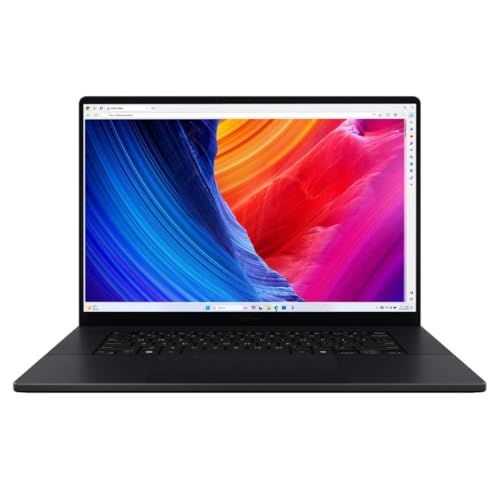
This review covers the H7606WX-XH99T, the factory build listed in the ASUS US configuration table with a Ryzen AI 9 HX 370, an RTX 5090 Laptop GPU, 64GB of memory, two 2TB SSDs, a 3840x2400 120Hz tandem OLED touchscreen and Windows 11 Pro. It is a late-2025 machine being bought in late 2026. Older P16 models used a 60Hz panel. If a listing shows a different model code, assume different specs until proven otherwise. Newer does not automatically mean better for your workflow.
The H7607 RTX Spark models share the ProArt name but are separate machines built on an Arm platform with shared memory, rather than the dedicated graphics memory in this laptop.
NVIDIA's launch materials describe native Photoshop and Premiere Pro as betas, with native Substance support to follow. If Spark tempts you, verify every plugin you depend on first. The rest of this review covers the x86 RTX 5090 model.

The 24GB question: capacity, compute and your real bottleneck
The RTX 5090 Laptop GPU has 24GB of GDDR7 against 16GB on the RTX 5080 Laptop, according to NVIDIA's spec listing. Think of memory as the size of a workbench and compute as how fast the person at it works. The two chips differ in both, so the 5090 is not simply a 5080 with a bigger bench. The memory gap, though, is the clearest and most predictable difference, and it is the strongest reason to pay for this configuration.
When a scene, texture set or local model does not fit in GPU memory, what happens depends on the software. Blender's manual, for example, says its CUDA, OptiX, HIP and Metal backends can try to use system memory when the GPU fills, with a performance cost. Other tools may slow down, throw an error or refuse to load a model. More memory can turn those cases into clean runs. Two cautions: a project that overflows 16GB will not automatically fit in 24GB, and a meter showing high GPU memory use is not proof on its own, because many apps reserve or cache memory they do not strictly need. Look for reproducible slowdowns or errors on the same project instead.
Below 16GB, the case rests on compute, and that is less predictable. We have no matched creator benchmarks against an RTX 5080 laptop, so we will not promise a percentage.
4K video is the common overreach. Editing has separate bottlenecks: decoding camera files leans on media engines and the CPU, real-time effects lean on the GPU, and exports depend on codec and settings. A plain 4K cut can run well on far less graphics memory, while heavy noise reduction, stacked GPU effects and AI tools are where capacity starts to bite. Bottlenecks also coexist: a project can be short on GPU memory and limited by the CPU or storage at the same time.
Judge by your worst project as well as your average one. A regular job hitting a GPU-memory wall is a practical reason to compare extra capacity, then verify that the job actually fits and benefits. It does not make 24GB automatically sufficient or the P16 the winner. The Blade 16 also offers 24GB, so compare power, screen, service and price. If memory is not the bottleneck, compare compute performance and the screen instead.

Memory and storage: what is fixed and what is not
The 64GB of LPDDR5X is mounted on the board, according to the ASUS technical specifications, so it cannot be upgraded. That is comfortable for most editing, photo and 3D work, but think about the next few years of projects. If you already exceed 64GB on a desktop, a bigger GPU will not fix it. The 24GB of graphics memory is separate. It does not combine with system RAM into an 88GB pool, and running short of either can slow or fail a job.
Storage is two 2TB SSDs filling both slots. The primary link is PCIe 4.0 x4 and the secondary is x2, a narrower path that can cap peak throughput but does not mean every application runs at half speed on that drive. Cache traffic can be part of a bottleneck, so let actual drive performance and your project's file activity decide where active footage and caches live, rather than assuming either slot is the slow one. Archives are the easy low-demand fit.
Do not assume a particular SSD brand or identical drives. Fast external storage is an option for big libraries if it suits how you work. And two drives are not a backup: keep an off-device copy of client work.

The 4K touch OLED: when it earns its place
The 16-inch 3840x2400 tandem OLED is the other half of what you are paying for. The current ASUS specification lists an anti-reflection treatment and stylus support. Anti-reflection reduces glare without eliminating it, so check the screen in your usual workspace, especially near windows. ASUS quotes a 1600-nit HDR peak. Read that as a manufacturer figure for HDR highlights, not a promise of full-screen or everyday desktop brightness.
Resolution helps less than it sounds at this size: with Windows scaling, the extra pixels mostly mean sharper text and finer detail, not more workspace. The 120Hz refresh smooths scrolling and scrubbing but does nothing for export times. Stylus support is listed, but this is a clamshell, not a drawing tablet, so check pen comfort for your own tasks before relying on it, and do not assume a pen is in the box.
A bright, wide-gamut panel is not automatically a reference monitor. If you deliver HDR or color-critical work, color management, the target gamut and the delivery context matter more than how vivid the panel looks. Check exports on the kind of screen your audience actually uses.
The value turns on where you work. Docked to a large external monitor most of the day, you rarely see the premium panel. On location, in suites without spare displays, or anywhere the laptop is the screen, it earns its share of the price.
Workload outlook: where this configuration fits
These are reasoned expectations from the configuration and independent findings, not Pickori benchmark results. Use them to decide which project to test first.
| Workload | Outlook | What to expect |
|---|---|---|
| Blender and 3D rendering | Strongest fit when scenes outgrow 16GB | Capacity can keep heavy geometry and textures on the GPU. Smaller scenes may still benefit from extra compute, but test rather than assume. |
| 4K video in Premiere Pro or Resolve | Good, but 24GB is rarely the deciding factor | Decode, effects and export have different bottlenecks. GPU-heavy effects and noise reduction gain most from capacity; a plain edit usually does not need it. |
| Local AI models and generative tools | Strong fit for models that need the memory | Whether a model loads can depend on GPU memory, so 24GB widens what runs locally on NVIDIA-supported tools. |
| Lightroom and photo libraries | Plenty for editing; AI Denoise can use the GPU | Adobe describes Denoise as GPU-intensive and recommends a faster GPU, so heavy batches can benefit. For everyday edits, the screen and card reader matter more. Compare real time saved before paying for this tier. |
| CPU-heavy compiles and simulations | Unchanged by the bigger GPU | The Ryzen AI 9 HX 370 sets the pace for jobs that never touch the graphics chip. |
| Long GPU jobs on battery | Plan for AC power | Independent battery figures describe browsing. Assume an outlet for real rendering. |
Our read: the P16 is strongest when the work is GPU-heavy, memory-hungry and done on the built-in screen. If one of those is missing, price a 16GB or higher-power alternative first.
Power, noise, battery and buying: the ownership costs
Notebookcheck tested an ASUS-supplied HX 370/RTX 5090 P16 in October 2025, not the modified Amazon offer. GPU limits were 120W (Performance), 105W (Standard) and 55W (Whisper); fan noise ranged from about 42 to 53 dBA. Browsing lasted 8h23 at 150 nits and 5h12 at full brightness. Its 1.95kg body came with a roughly 730g adapter. These are browsing results, not unplugged rendering estimates; try Standard first and compare your actual project.
Against the same-chip 2025 Razer Blade 16, PugetBench Photoshop Overall 1.01 scores were 8,893 (P16) and 8,879 (Blade); Premiere Pro Overall 1.1 scored 11,107 and 12,662. That is a near-tie and a Blade lead in those aggregate tests, not export timings or a universal application ranking. Neither predicts the 2026 Blade, the modified P16, or every project. Choose by your software and test your own demanding files.
Ultrabookreview reached a more cautious picture from a pre-production sample tested in October 2025, with the page later updated. The reviewer flagged a possible CPU cooling issue, and an early battery reading of around three hours was revised to roughly five to nine hours of browsing after a Windows reset, at 120 nits and 60Hz. We cannot say what caused the change. The useful lesson is about method: sample status, software state and settings can move results a lot. It does not prove retail units run hot, and it is not a reason to ignore the concern. Watch temperatures and fan behavior on your own unit.
Ports include full-size SD Express, HDMI 2.1, two USB-A, one 10Gbps USB-C and one 40Gbps USB4. Confirm your dock drives your displays and charges as expected. A USB-C dock may top up the battery under light load, but do not assume it replaces the 240W adapter for full performance.
CDW listed this exact factory configuration at $5,718.99 when we checked on October 21, 2026. That is a dated snapshot, not a stock or checkout guarantee. When comparing listings, match 64GB, two 2TB drives and Windows 11 Pro, then compare warranty, service and return terms.
Start with untouched factory stock from sellers on ASUS's shopping list. Some listings are retailer-modified units, and a modification is not evidence of better performance, so pay extra only for support or return terms you actually value.
Decision guide 1: How much premium is the portability worth?
Set your ceiling by where the work happens. On location or in client suites, the P16 puts NVIDIA acceleration and a high-resolution screen for editing and reviewing work in one bag. That is where its premium makes the most sense. Beside an external display at a permanent desk, you are paying for portability and a built-in panel you rarely benefit from, so compare alternatives before spending extra.
Then price downtime. For paid work, a failed machine costs billable days, so warranty length, repair turnaround and return terms belong in the value calculation. A slightly higher price from a seller with better service can be the cheaper choice.
Decision guide 2: Your return-window project test
Pick two real projects, one typical and one heavy, and run both on AC power with your client settings and plugins. Time the heavy job in Standard and Performance, then decide whether the gap is worth the noise. Test on battery only if you plan to work that way.
At your desk, confirm display output, charging and peripherals, and check an export on a second screen. Judge memory by behavior, not a percentage: pauses, stutters and crashes matter. If the heavy project runs cleanly and the fans do not wear on you, keep it.
Who this product fits
The 3D artist on the move
Your scenes regularly push past 16GB and you work in client studios or on trains with an outlet nearby. This is the P16's best case: 24GB in a body that travels well, with a screen good enough that you do not need to hunt for a monitor.
The video editor who mostly docks
You cut 4K footage at a desk with a large external monitor, so the integrated panel matters less and your edits may not need 24GB. Price a Zephyrus G16 with an RTX 5080 against it, and if GPU power is the priority, Razer lists a Blade 16 with the same 24GB GPU and a higher power claim. Compare on your own timeline.
The photographer upgrading an old laptop
The SD Express reader and OLED are appealing, and AI Denoise batches can use a strong GPU. For mostly everyday editing, though, compare the real time saved against a less expensive laptop before paying for this tier.
What else to compare
These rivals win on different terms. Treat each as a candidate to compare on your own project and current price, not a proven cheaper or faster choice. Creator branding is no reason to rule out a gaming laptop, and the compact PX13 suits buyers who want a convertible with shared AMD memory rather than a CUDA machine.


ASUS ProArt P16 RTX 5090 FAQ
Do I need 24GB of VRAM for 4K video editing?
Usually not. Many 4K edits run well with less. Heavy effects, noise reduction and AI tools are where 24GB starts to matter, so test your own timeline.
How does the ProArt P16 compare with the Zephyrus G16?
The 2026 Zephyrus G16 can be configured with an RTX 5080 (16GB), 64GB of RAM and a 2560x1600 240Hz OLED. It is a natural comparison if your projects fit in 16GB. The P16 adds 24GB and a 4K touch panel. Compare current prices and your own timings.
Should I choose the P16 or a MacBook Pro?
Pick by software. CUDA, NVIDIA-only plugins or Windows tools point to the P16; a macOS workflow points to a MacBook Pro. We have not compared them in direct tests.
What is the difference between the 60Hz and 120Hz ProArt P16?
Older P16 models used a 60Hz display. The H7606WX-XH99T, which ASUS announced for the fourth quarter of 2025, uses a 120Hz tandem OLED for smoother scrolling and scrubbing. It does not speed up exports, and other specs differ too, so check the model code.
Who should buy it
Buy the H7606WX-XH99T if NVIDIA-accelerated work is the core of your job and you do it on the laptop's own screen. Projects that need more than 16GB of GPU memory make the strongest case.
Buy factory stock, run your heaviest job inside the return window, and keep it if it finishes cleanly at a noise level you can live with.
Sources and research notes
Independent evaluations
Official product information
- ProArt P16 RTX 5090 announcement and Q4 2025 availabilityASUS
- ProArt and GoPro: US P16 configuration tableASUS
- ProArt P16 H7606 technical specificationsASUS
- Factory H7606WX-XH99T: 64GB, 2 x 2TB, RTX 5090, Windows 11 ProCDW
- ProArt P16 H7606 authorized shopping optionsASUS
- New RTX Spark ProArt models: separate H7607 platformASUS
- RTX Spark launch: native creative applications and beta statusNVIDIA
- Blade 16 (2026) configurations and specificationsRazer
- Zephyrus G16 (2026) GU606 specificationsASUS ROG
- GeForce RTX 50-series laptop GPU specificationsNVIDIA
- Blender 5.0 manual: Cycles GPU rendering and memoryBlender
- Lightroom Classic: Enhance details and Denoise GPU guidanceAdobe