
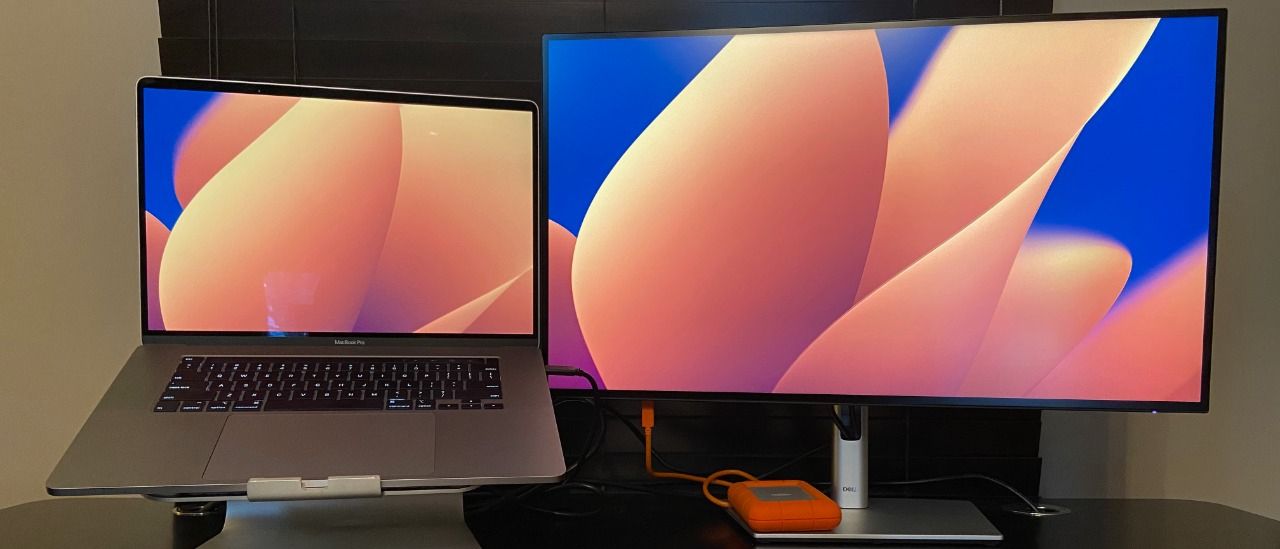
What to know first
- 27-inch 4K (3840 x 2160) gives you lots of usable workspace for documents, code, and side-by-side windows.
- USB-C hub design can reduce desk clutter by letting the monitor act as a central connection point for a laptop and peripherals.
- Ergonomics are strong: tilt, swivel, and full 90-degree rotation for portrait mode.
- Anti-glare finish and Low Blue Light setting are aimed at long study or work sessions.
- Includes a 100 x 100 VESA mount option if you want an arm mount instead of the stand.
- No HDMI cable included, even though many laptops and devices still rely on HDMI.
What the Dell UltraSharp 27 4K USB-C Hub Monitor (U2723QE) is
The Dell UltraSharp 27 4K USB-C Hub Monitor (U2723QE) is a 27-inch 4K monitor built to be the center of a laptop-based desk. Instead of treating your monitor as “just a screen,” it’s designed to also handle the everyday connections you normally need a separate dock for.
In practical terms, that means you can plug your laptop into the U2723QE with USB-C and use the monitor as your main display while also connecting accessories through the monitor’s built-in hub. If your desk setup includes a keyboard, mouse, external drive, or wired network, this style of monitor can make your setup feel more like a desktop computer without giving up the portability of a laptop.
For back-to-school use, it’s a strong fit for research and writing, coding, and any work where you’re constantly switching between a draft and multiple sources. A second screen changes your workflow fast because you stop hiding windows and start keeping your work visible.
Why it stands out
The standout feature is the built-in connectivity hub. The U2723QE is meant to reduce the “dongle chain” problem by giving you multiple USB ports through the monitor, plus networking support and an audio line-out. For a dorm desk or small apartment setup, that can be the difference between a tidy workspace and a constant mess of adapters.
The screen itself is a big part of the appeal. 4K resolution (3840 x 2160) on a 27-inch panel gives you a lot of usable space. You can keep two documents comfortably side by side, or keep a browser, notes, and a draft open without everything feeling cramped. If you do any photo or video work, the monitor also includes multiple color space options (including sRGB, Rec. 709, and DCI-P3) and HDR options.
It’s also built to be comfortable for long sessions. Dell includes a Low Blue Light setting, and the screen has an anti-glare finish with a 3H hard coating to cut down on reflections. If you’re staring at a screen for hours of reading and writing, those details matter more than they sound like they will.
Finally, the physical adjustability is excellent. You can tilt, swivel, and rotate the display into a vertical orientation. Portrait mode is a real productivity trick for coding, reading long PDFs, and writing, because you see more lines at once and scroll less.
What it is like to own
Setup is designed to be straightforward. The stand assembly is tool-free, and once it’s on your desk, the monitor’s footprint is meant to stay out of your way. If you already know you want an arm mount, the 100 x 100 VESA interface gives you that option.
Day to day, the “hub monitor” idea is what you’ll notice most. Instead of plugging your laptop into power, a USB hub, and a display cable separately, you can treat the monitor as the connection point. That’s especially helpful if you dock and undock a laptop a lot between classes, the library, and your room.
Cable expectations matter here. Dell includes a power cable, a USB-C to USB-C cable (1 meter), a USB-C to USB-A cable, and a DisplayPort cable (1.8 meters). You do not get an HDMI cable in the box, so if HDMI is how you plan to connect, you’ll need to bring your own.
If you like to fine-tune how your screen looks, the monitor provides quick access settings for common color spaces. That’s useful if you bounce between general schoolwork and creative tasks and want a predictable look without digging through complicated menus every time.
What to know before you buy
The biggest “read this before you buy” detail is the USB-C behavior. When you connect via USB-C, you have to choose between High Resolution or High Data Speed. If you’re planning to run fast peripherals through the monitor’s hub while also pushing the display hard, you’ll want to understand that tradeoff before you build your whole desk around it.
Plan for your cable run. The included USB-C to USB-C cable is 1 meter, which can be limiting if your laptop sits off to the side, if you use a laptop riser, or if you’re trying to route cables neatly around a larger desk. You may end up buying a longer cable that fits your layout better.
Also, don’t assume you’re covered on HDMI. Dell includes DisplayPort and USB-C cables, but not HDMI. That’s not a dealbreaker, but it’s an extra item to remember if you’re setting up a new desk from scratch.
The specs that matter
A 27-inch screen is large enough to comfortably split your workspace into two or more windows, but still realistic for a dorm desk or small apartment setup.
4K gives you more usable workspace. You can keep more text, code, or spreadsheet columns visible at once, which cuts down on constant window switching.
This is what makes the monitor feel like a docking station. It can simplify your desk setup so plugging in your laptop is closer to “one cable and go.”
If you want both maximum display output and maximum peripheral bandwidth at the same time, you may need to decide what matters more for your setup.
You can set it up to match your posture and your work. Portrait mode is especially useful for reading and writing long documents or viewing code.
If your desk is tight, an arm mount can free up space and make it easier to position the screen exactly where you want it.
You can get up and running quickly over USB-C or DisplayPort, but if you need HDMI you’ll need to add that cable to your cart.
Who this product fits
You’re writing papers with a lot of sources
The Dell UltraSharp 27 4K USB-C Hub Monitor (U2723QE) gives you enough screen space to keep your draft open next to articles, PDFs, and citations. You’ll spend less time flipping between tabs and more time actually writing.
You dock and undock a laptop every day
This monitor is built for a one-cable routine. Plug in over USB-C and you can use the monitor as your display and your connection point for accessories, which makes coming back from class feel like sitting down at a ready-to-go workstation.
You want a portrait monitor for reading and coding
The 90-degree rotation lets you turn the screen vertical. That’s great for long documents, web pages, and code because you can see more lines at once and scroll less.
Dell UltraSharp 27 4K USB-C Hub Monitor (U2723QE) FAQ
Is the Dell UltraSharp 27 4K USB-C Hub Monitor (U2723QE) good for a laptop setup?
Yes. It’s designed to be an all-in-one workspace solution where the monitor can also act as a connectivity hub. For many laptop desks, that means fewer adapters and a cleaner setup.
Can the Dell UltraSharp U2723QE run in portrait mode?
Yes. The stand supports full 90-degree rotation, so you can use it vertically. That’s useful for reading, writing, and coding.
Does the Dell UltraSharp U2723QE come with an HDMI cable?
No. It includes a power cable, USB-C to USB-C, USB-C to USB-A, and DisplayPort, but you’ll need to provide your own HDMI cable if that’s how you plan to connect.
What’s the main downside of using USB-C on the U2723QE?
Over USB-C, you have to choose between High Resolution or High Data Speed. If you’re relying on the monitor’s hub for peripherals, that choice can affect how you set up your desk.
Can I mount the Dell UltraSharp U2723QE on a monitor arm?
Yes. It includes a 100 x 100 VESA interface, which is the common standard for most monitor arms and wall mounts.
Should you buy the Dell UltraSharp 27 4K USB-C Hub Monitor (U2723QE)?
If you want a sharp 27-inch 4K screen and you like the idea of your monitor doubling as a hub for your laptop, the Dell UltraSharp 27 4K USB-C Hub Monitor (U2723QE) is a smart buy. It’s built for the exact reality of modern school and office work: lots of documents, lots of tabs, and lots of plugging in and unplugging.
Buy it for the workflow upgrade, not just the pixels. The combination of 4K workspace, strong ergonomics (including portrait mode), and hub-style connectivity is what makes it feel like a real desk setup instead of a laptop balancing act. Just go in knowing you may want a longer USB-C cable, and you’ll need to supply HDMI if that’s part of your plan.