

Pickori's Take
- The ThinkPad X9 15 Aura Edition is an easy recommendation for people who spend whole afternoons on the laptop's own screen. A report and its spreadsheet fit side by side in a clamshell that is still a practical daily carry.
- Battery life is the quiet strength. Independent light-use results for this family reach the mid-teens of hours. In Notebookcheck's controlled runs, screen brightness moved runtime far more than refresh rate did.
- Navigation is where ThinkPad loyalists need to pay attention. The input layout is modern rather than classic, and the shallow keys divide reviewers. The haptic touchpad is the stronger half.
- Picture the two apps you most often use together, side by side at a text size you can read without leaning in. If that view describes your day, this screen is the reason to choose this laptop. If it doesn't, a smaller machine may serve you just as well.
- Value tracks how often you work away from a monitor. The newer X9 15p adds memory capacity, a bigger battery and an SD reader, but ordinary office work does not require any of them.
A 15.3-inch OLED workspace you can actually carry
The ThinkPad X9-15 Aura Edition is Lenovo's 15-inch premium Windows clamshell from the 2025 Gen 1 lineup, built on Intel's Lunar Lake platform. We are covering the 21Q6002BUS configuration here. It suits people who want more screen than a 14-inch laptop offers but not the thick chassis and discrete graphics that usually come with bigger machines.
Size is where the argument starts. At the same 16:10 shape, a 15.3-inch panel has about 19 percent more physical area than a 14-inch one. That does not mean Windows shows 19 percent more columns. Scaling decides how much of the extra space becomes content and how much becomes larger, easier text. The real gain is choice. You can keep a legible PDF beside an email, or a report beside its spreadsheet, without shrinking type to force the fit.
OLED earns its money as a work display, not just a movie perk. Text looks sharp, and 120Hz makes long documents scroll smoothly. Full DCI-P3 coverage tells you which colors the panel can show. It says nothing about how precisely a given unit is tuned, so print-critical work still calls for calibration. If the laptop will spend most of its life closed on a dock, very little of this reaches you.
Touch is handy for pinching a PDF or flicking through a page, but this is a conventional clamshell with no tablet mode or listed active pen support. The glossy screen also picks up a bright window behind you, so where you sit matters.
Performance outlook by workload
These are expectations reasoned from the processor, memory and graphics specifications, not Pickori benchmark results.
| Workload | Outlook | What to expect |
|---|---|---|
| Office, email, browser apps and meetings | Excellent fit | The chip's bursty design and 32GB should keep heavy multitasking responsive through the day. |
| Large PDFs, spreadsheets and moderate photo edits | Strong | The large screen helps as much as the processor. Very large data models can still lean on the CPU. |
| Coding and occasional video editing | Good, depending on the project | Editing and debugging should run comfortably, and the media engine helps with supported formats. Long builds, VMs and effect-heavy timelines expose the limits of eight cores. |
| Gaming and CUDA-dependent work | Limited | Light games run at reduced settings. CUDA-only tasks need NVIDIA hardware. |
The X9 15 is not trying to be a workstation. It puts its effort into the screen, the battery and the carry weight, and for the document, meeting and browser work it targets, that is the smarter place to spend.
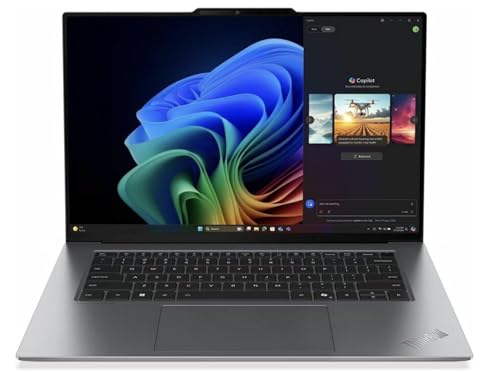
Keyboard and TrackPoint: the ThinkPad habit it leaves out
Longtime ThinkPad owners should hear this first. There is no TrackPoint, no red nub between G, H and B, and no physical buttons above the touchpad. If that pointer is how you navigate, choose a ThinkPad that keeps it. The name on the lid does not guarantee a shared input layout.
Keys travel 1.35mm, shallower than the deep ThinkPad keyboard many people picture. RTINGS found typing on its unit comfortable.
Laptop Mag thought the keyboard could be better. Both verdicts can be right. Short travel is not automatically uncomfortable, but writers who rely on a firm, deep bottom-out often prefer more depth. If you write long documents for a living, try one first or plan on an external keyboard at your main desk.
The touchpad is easier to recommend. It is a haptic design: an actuator simulates the press instead of a hinged surface physically clicking, so a click feels the same anywhere on the pad. Some people never warm to simulated clicks, but uniform response beats the stiff upper edge of many mechanical pads. Despite the 15-inch chassis there is no number pad, so anyone keying figures all day should add an external keypad.

Core Ultra 7 268V performance: built for the shape of a workday
Intel's Core Ultra 7 268V combines four performance cores and four low-power efficient cores, boosts to 5GHz, and carries a 17W base and 37W maximum turbo rating. Those are processor specifications, not measurements of what this laptop sustains or draws at idle. They still describe the chip's intent: quick bursts for the click-and-wait rhythm of office work, in a design aimed at efficiency rather than sustained peak output.
That intent fits how most people use a laptop like this. Office, Outlook, browser-based business tools, large PDFs, video meetings and moderate photo edits lean on responsiveness more than sustained multicore muscle. Software development depends on the project. Editing and debugging should sit comfortably here, while long full builds or several virtual machines at once will show the limits of an eight-core chip.
The 32GB matters for a different reason than raw speed. It lets a pile of documents, a meeting client, chat and dozens of tabs stay open without the constant triage of closing things to stay responsive. What extra capacity does not add is processing power: when a job is limited by the processor or graphics and already has the memory it needs, more RAM will not make it finish sooner.
Arc 140V graphics are more capable than the old idea of integrated graphics suggests. The hardware media engine handles H.264, HEVC and AV1 when your app supports it, which helps occasional video editing. Light games run at lower resolutions and settings. The 2.8K screen is not a 2.8K gaming promise, and tasks that only run on NVIDIA CUDA need an NVIDIA machine, though many apps offer CPU or other GPU paths. The 48 TOPS NPU and vPro badge should not drive the purchase. The NPU speeds up software written for it, and vPro mainly serves managed corporate fleets.

Battery life: long light-work endurance, and the settings that move it
Battery life is where the X9 15 makes its strongest case. An 80Wh battery and an efficient chip deliver long light-work endurance, and three independent publications agree on that direction even though their numbers differ. The tests and configurations differ too, so treat the figures as separate conditions rather than one number to average.
RTINGS tested this exact 21Q6-002BUS touch configuration and reports roughly 15 hours of light use and nearly 19 hours of video playback.
Laptop Mag's Core Ultra 7 258V OLED touch unit lasted 16 hours 24 minutes of Wi-Fi browsing at 150 nits.
Notebookcheck's 258V unit is the most useful because it changed one setting at a time. Its 150-nit Wi-Fi test ran 17 hours 28 minutes at 60Hz and 15 hours 35 minutes at 120Hz. At 60Hz and maximum SDR brightness, the same unit fell to 9 hours 29 minutes. On that one laptop, brightness cost about eight hours and refresh rate about two.
That points to a sensible habit, not a sacrifice. On a long unplugged document day, start by lowering brightness to something comfortable, then drop to 60Hz if you want more. Near outlets, keep 120Hz and enjoy the smoothness. Calls, camera use, screen sharing and background sync draw more power than light browsing, so do not plan a meeting-heavy day around light-use figures. Pack the charger on those days.

While you're comparing
The right product, at a better price
Our free morning email rounds up discounts worth knowing about, from kitchen upgrades to everyday tech. Reviews and buying guides arrive separately in our occasional newsletter.
Free to joinUnsubscribe anytime
Ports, monitors and calls: a desk setup without a mandatory hub
Many thin premium laptops send you shopping for a dock on day one. This one has a Thunderbolt 4 port on each side, so power can come in from whichever side faces the outlet while the other port runs a fast SSD or dock. HDMI takes a monitor directly, and USB-A handles a mouse dongle or keypad.
External displays have a clear ceiling: the internal screen plus two externals, not three externals. HDMI is rated for 4K at 60Hz, which suits a typical office monitor. If you are planning a higher-resolution or high-refresh desk, check that setup against the ports before you buy screens.
There is no SD reader and no Ethernet jack. Photographers offloading cards will want a card reader, and anyone on a wired office network will need a USB Ethernet adapter or a dock that includes one.
The 8MP IR camera handles face sign-in, and the fingerprint reader adds a second quick option. Sensor resolution is not the same as call quality. Meeting apps negotiate their own video resolution and lighting still decides how you look, so 8MP does not mean a 4K Teams image. The privacy shutter is electronic rather than a physical slider.
Upgrades: settle memory now, storage can wait
Memory is the one decision you cannot revisit. The 32GB sits on the processor package and cannot be expanded. For heavy multitasking it is a comfortable amount, and lighter users may never touch its ceiling. Judge it against the projects you run today. If your current work already crowds 32GB, this platform cannot grow with you, and that is the clearest reason to look at the 15p.
Storage is more forgiving. The 1TB drive uses a single M.2 2242 slot, a shorter format than the common 2280. Upgrading means replacing the drive rather than adding a second one, so buy the correct size and plan on cloning or a fresh install from a backup. Usable space will be somewhat under 1TB once Windows is installed.
An external SSD over Thunderbolt makes a fast home for archives and project libraries. It adds filing space, not working memory. Disk space holds your files, while RAM holds what you are working on right now, and no external drive stretches the second.
Value, and whether the X9 15p changes the math
Lenovo's store listed this configuration at $2,299 on October 23, 2026. Compare that against other 32GB, 1TB OLED touch laptops rather than a rival's cheapest base model, since a like-for-like configuration is the only fair price test.
Value comes down to where you work. If you use the laptop's own screen for hours, carry it often and want long unplugged days, you will feel what you paid for every day. If it lives closed beside a monitor, that money buys more as a faster processor or a better external display.
In January 2026 Lenovo announced the X9 15p Aura Edition, a performance-focused branch with Core Ultra Series 3 chips, up to 64GB of memory, an 88Wh battery, an SD reader and a 15.3-inch 2.8K OLED. It is worth a look if 32GB already pinches or you offload camera cards daily. It does not make the original X9 15 outdated for documents, meetings and browser work. Pay for improvements you will notice each day, not for the newer name.
Is the OLED comfortable for long reading sessions?
For most people the answer will come from text size and glare rather than the panel type. Start with Windows scaling set so you read without leaning in, and sit with bright windows beside you rather than behind you. Glossy OLED rewards a little attention to placement.
Some users are sensitive to OLED brightness modulation. RTINGS reported flicker around 480Hz on its touch unit.
Notebookcheck measured roughly 1200Hz on its unit. Different panels, units and methods make the cause impossible to isolate, and neither result should be assumed for every X9 15. If you have reacted to OLED screens before, buy from a seller with an easy return policy and judge your own comfort over a few full workdays.
What to check in your first week
Use it the way you will actually work. Set your normal brightness and text scale, then run a real day of documents and browser tabs at 60Hz and another at 120Hz to see which battery trade-off you prefer.
Join a real video call, connect your monitor or dock, and type a long document. Notice the keyboard depth and how the glossy screen behaves at your desk. Those everyday impressions tell you more than a synthetic benchmark marathon.
Configuration reviewed
An efficient x86 chip, so familiar Windows apps run natively.
Comfortable for monitors, playback and light creative work. It is not a gaming GPU.
Plenty of room to keep many apps, documents and tabs open at once.
Worth asking how much of your work truly needs to live on the laptop versus in cloud storage or an archive drive.
Crisp, generous workspace with a glossy surface.
Choose a compatible USB-C PD spare delivering at least 65W, with a suitably rated cable.
Compare your whole travel kit, including the charger, rather than the laptop alone.
This is modern ThinkPad input, not the classic layout.
The business edition that corporate IT departments typically expect.
Who this product fits
The analyst who works from cafes and trains
This is the buyer the X9 15 was made for. Spreadsheets and reports sit side by side at legible sizes, and light document work at moderate brightness is exactly where the independent battery results look strongest. Keep the charger in the bag on call-heavy days, and add a USB keypad if numbers are the core of the job.
The TrackPoint loyalist
Skip it. If your hands have years of nub navigation built in, the X1 Carbon Gen 13 keeps that habit in a smaller 14-inch body.
The docked hybrid worker
If the laptop sits closed under a monitor four days a week, the OLED becomes an expensive spare screen. A cheaper or more powerful configuration will serve you better.
Alternatives worth weighing
Choose by the priority the X9 15 does not serve.
| Your priority | Start here | Why |
|---|---|---|
| A smaller, lighter work laptop with a TrackPoint | Lenovo ThinkPad X1 Carbon Gen 13 Aura Edition | It trades screen area for a 14-inch body and keeps classic ThinkPad navigation. |
| Pen input and a folding design | HP OmniBook X Flip 14 | A convertible built for writing and annotation, a different form factor rather than a like-for-like rival. |
| An even larger OLED Windows screen | Acer Swift 16 AI (2026) | It has a 16-inch OLED, but the reviewed version has 16GB of fixed memory. Compare workspace and price against your multitasking needs. |
| Open to macOS | MacBook Air 13-inch M5 | Worth considering if all your software runs on a Mac, but note it changes screen size as well as platform. You give up the big workspace that defines the X9 15. |
What else to compare
The X9 15 is a big-screen, long-battery Windows clamshell. If one of those priorities does not match yours, these are the better starting points.
Lenovo ThinkPad X9 15 Aura Edition FAQ
Does it have a TrackPoint?
No. If you rely on one, the X1 Carbon Gen 13 is the closer fit.
Can I upgrade the memory or storage?
Storage yes, memory no.
Should I wait for or buy the X9 15p instead?
It is worth comparing if you need more than 32GB of memory or a built-in SD reader, for example, or if its larger battery matters to how you work. For office and meeting work, the X9 15 already covers the job.
The bottom line
Plenty of laptops offer more cores, and plenty offer smaller bodies. Few give Windows users this much comfortable screen with battery life to match in a bag you will happily carry every day.
If your work happens on the laptop itself and you can live without the TrackPoint, the ThinkPad X9 15 Aura Edition deserves a place near the top of your list.
Sources and research notes
Our assessment combines Lenovo's exact-model specifications, independent testing and our analysis of how the hardware fits everyday work. We identify the tested configurations when discussing measurements; performance outlooks are Pickori's editorial judgments. How Pickori evaluates products.