Pickori
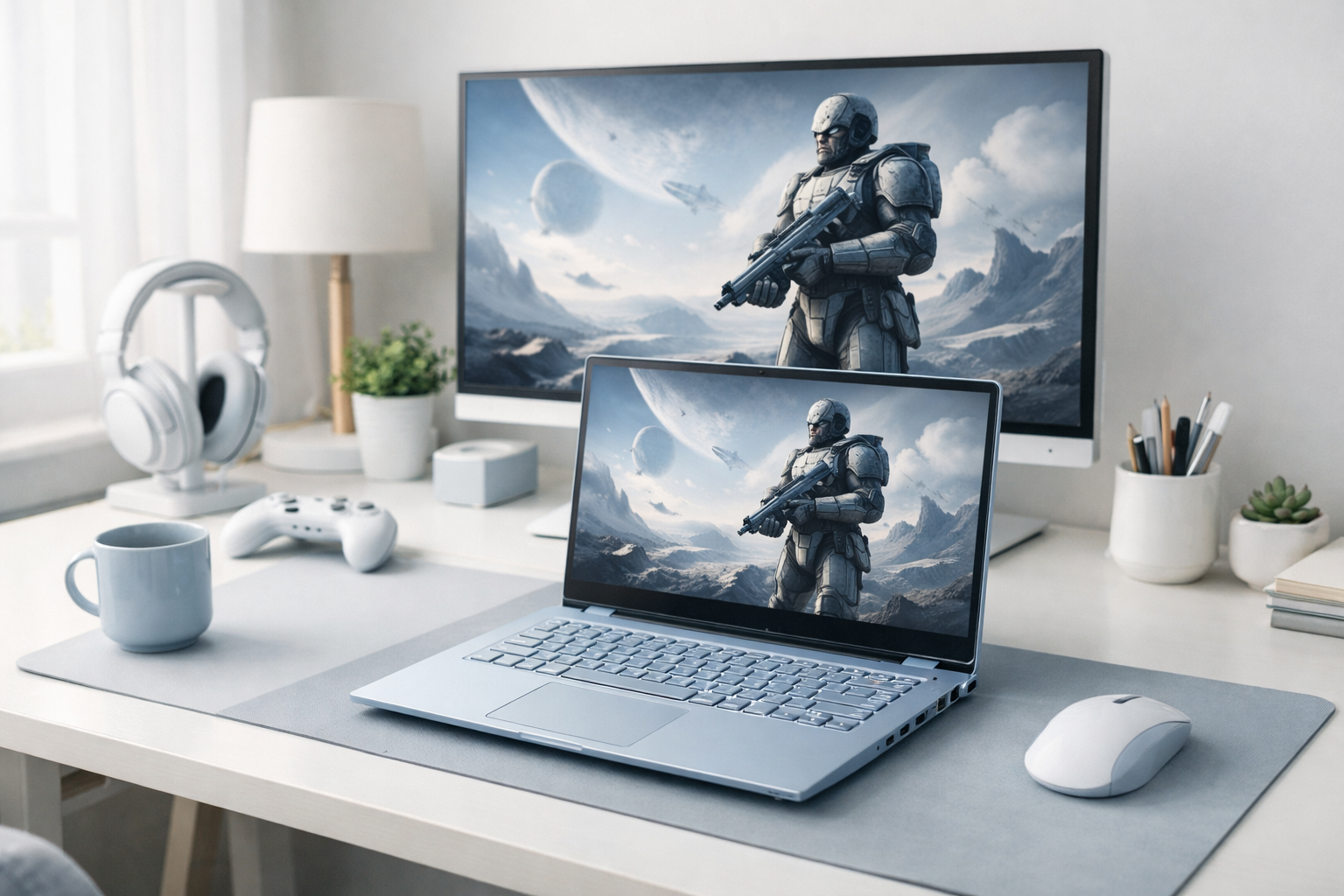
A gaming laptop on a desk connected to an external monitor and headset in a real home setup

Gaming Laptop Research

Gaming Laptops

Gaming laptops pack desktop style graphics performance into a portable computer, so you can play demanding games without being tied to a tower. This page explains the few hardware and design choices that actually change frame rates, fan noise, screen feel, and what it is like to live with a gaming laptop every day.

Gaming laptops run modern games smoothly without giving up portability

Most gaming laptop regret comes from buying the wrong kind of performance for the way you play. A thin model can look powerful on paper but still feel inconsistent in real games if it cannot cool the CPU and GPU long enough to hold high clock speeds. On the flip side, a thicker laptop with stronger cooling can be louder, heavier, and less pleasant to carry, even if it wins on frame rates.

The smart way to shop is to match the laptop to your target games, your screen expectations, and your real setup. The GPU (graphics processing unit) largely sets your gaming ceiling, but the display, cooling design, and power limits decide how often you actually reach it. Ownership details matter too: charger size, battery behavior when unplugged, port layout for external monitors, and how easy it is to clean dust from the vents can make a great spec sheet feel annoying in daily use.

Types of gaming laptops

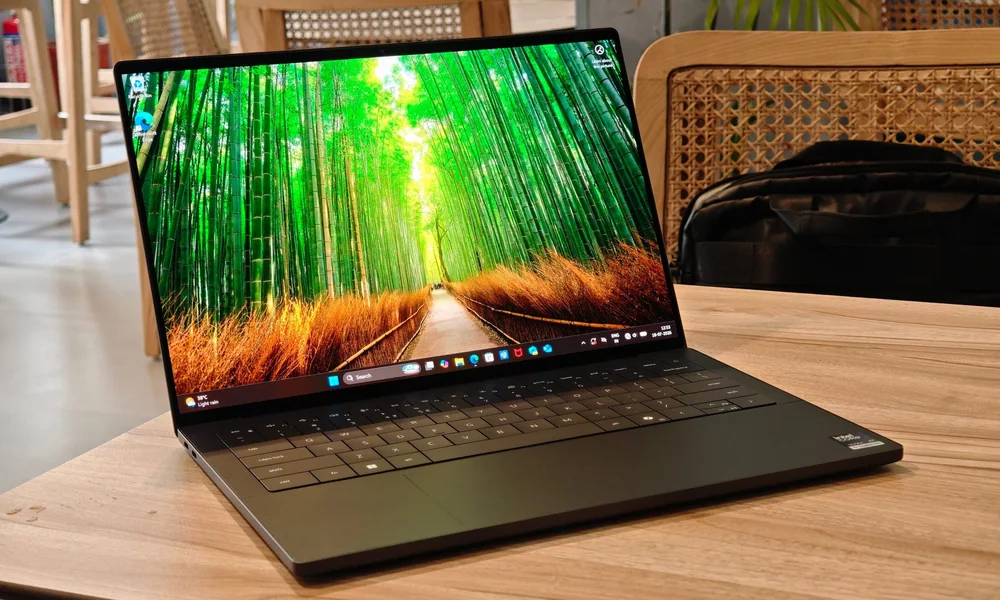
Dell XPS 14 (2026)

Thin-and-light gaming laptops

Prioritize portability with slimmer chassis and lighter cooling, often relying on higher fan speeds and tighter power limits to manage heat.

Best for: Students, commuters, and travelers who want real gaming capability but still carry the laptop daily.

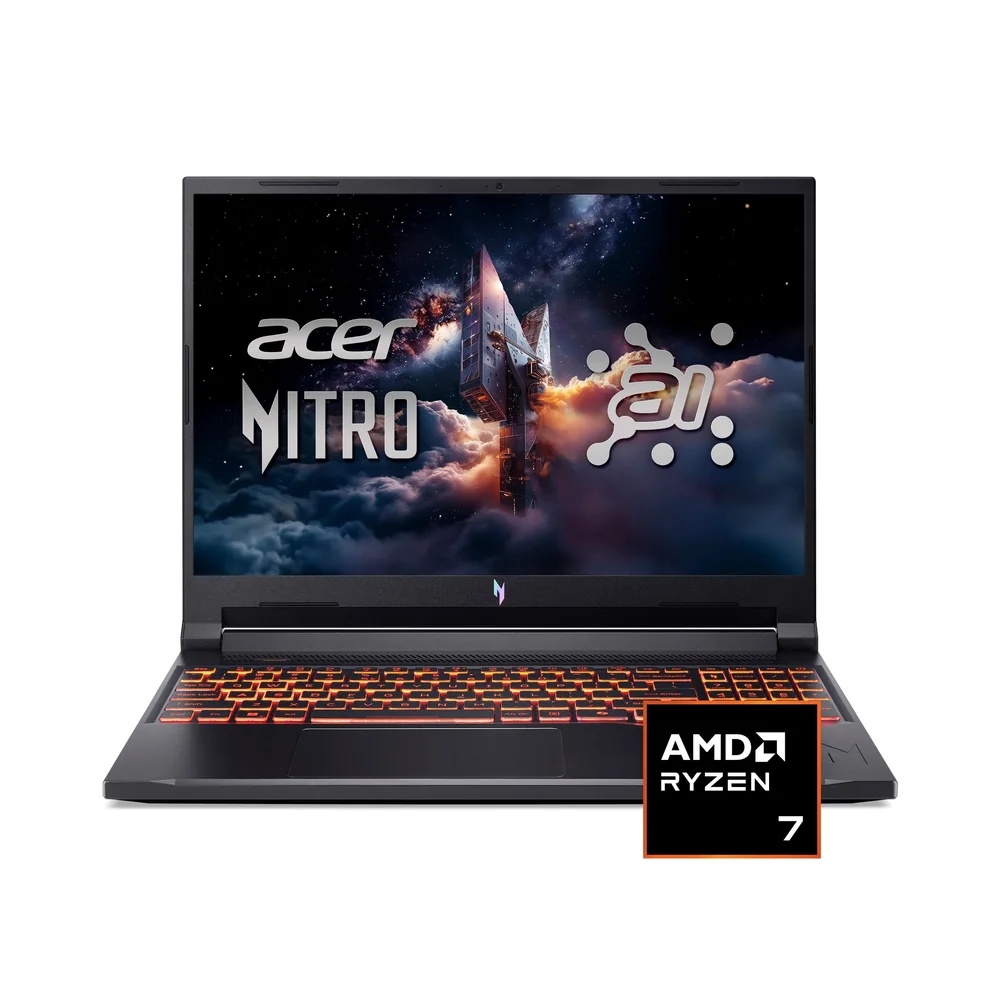
Acer Nitro V 16 AI

Performance-focused 16 to 18 inch gaming laptops

Use larger chassis for bigger heatsinks and fans, which helps the CPU and GPU sustain performance longer under load.

Best for: Players of AAA games who care about steady frame rates, lower throttling, and better thermals at the desk.

Gigabyte Gaming A18

Budget gaming laptops

Pair midrange GPUs with cost-cutting in screen quality, speakers, build materials, and sometimes cooling capacity.

Best for: Esports and lighter gaming, or shoppers who plan to use an external monitor and do not need premium fit and finish.

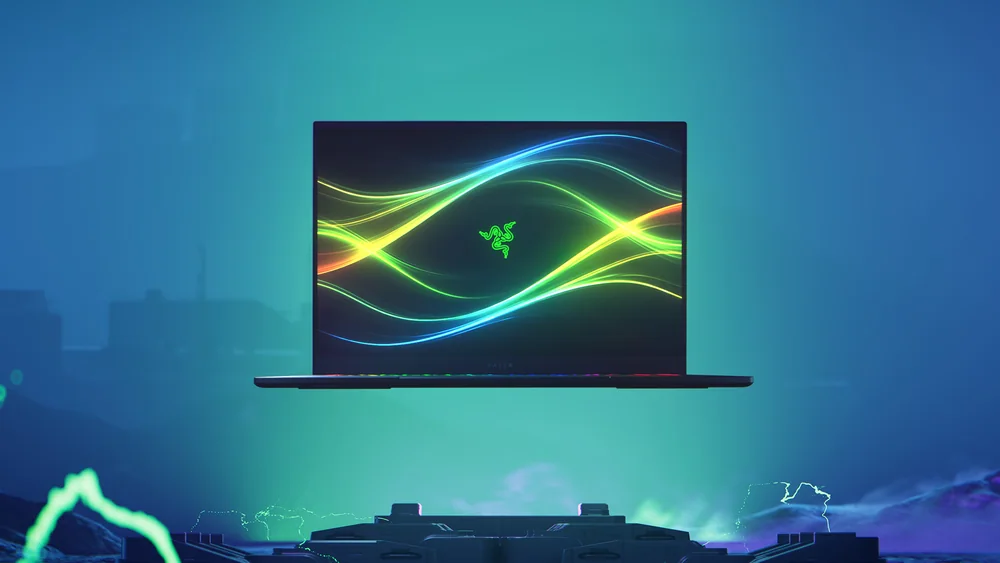
Razer Blade 16 (2026)

Creator-friendly gaming laptops

Balance gaming GPUs with displays and ports aimed at editing and production, often adding better color coverage and faster media workflows.

Best for: People who game and also do content creation, streaming, or game development on the same machine.

Gaming Laptop Buying Guides and Comparisons

Product reviews

In-Depth Gaming Laptop Reviews

Read the full reasoning, important specifications, ownership details, and alternatives for every product covered in this research.

Browse all 28 in-depth gaming laptop reviewsEvery full product review, organized by brandView complete archive

Acer1 review

Alienware3 reviews

Apple1 review

ASUS5 reviews

Dell1 review

Framework1 review

Gigabyte3 reviews

HP4 reviews

Lenovo4 reviews

MSI3 reviews

Razer2 reviews

Practical ownership help

Setup, care, and performance guides for gaming laptops

Practical help for getting smoother gameplay, quieter cooling, and fewer headaches over time.

HP OMEN MAX 16 (2025)
Setup guide Gaming laptop setup for the first day Set up updates, drivers, power, and storage in an order that prevents common performance and stability headaches. Read the guide →
Lenovo Legion Pro 7i Gen 10
Performance guide Why gaming laptops slow down on battery and what you can do about it Understand battery power limits and use settings that keep gameplay smooth when you are unplugged. Read the guide →
HP OMEN MAX 16 (2025)
Tuning guide How to reduce gaming laptop fan noise without wrecking performance Lower fan noise by improving airflow and using smart caps and profiles that keep performance steady. Read the guide →
ASUS ROG Zephyrus G14 (2024)
Care guide Cleaning gaming laptop vents and fans safely Keep airflow strong so your CPU and GPU can hold performance without extra noise or heat throttling. Read the guide →
HP OMEN MAX 16 (2025)
Setup guide Using an external monitor with a gaming laptop without losing performance Choose the right port, cable, and settings so your external display runs at its intended resolution and refresh rate. Read the guide →
Lenovo Legion Pro 7i Gen 10
Upgrade guide Upgrading RAM and SSD storage in a gaming laptop Plan RAM and SSD upgrades around what your laptop can actually accept and what will improve your games and daily use. Read the guide →
ASUS ROG Zephyrus G14 (2024)
Troubleshooting Reducing Wi-Fi lag on a gaming laptop Lower ping spikes and random rubber banding by tightening your Wi-Fi signal, settings, and connection path. Read the guide →
Lenovo Legion Pro 7i Gen 10
Performance guide Thermal throttling on gaming laptops explained Learn why performance drops mid-session happen and which fixes actually help a laptop hold speed under load. Read the guide →
ASUS ROG Zephyrus G14 (2024)
Ownership guide Traveling with a gaming laptop without breaking your setup Protect your laptop, pack power the right way, and set up quickly on the road without overheating or losing work. Read the guide →
Lenovo Legion Pro 7i Gen 10
Setup guide Streaming and gaming on one laptop without tanking frame rates You can stream and play on the same gaming laptop if you balance CPU, GPU, and heat so neither side starves the other mid-match. Read the guide →
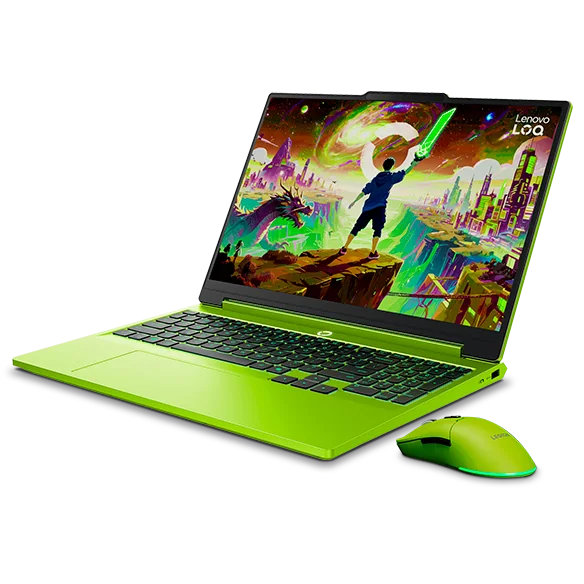
Lenovo LOQ 15
Compatibility guide VR gaming laptop checklist: ports, performance, and comfort A VR-ready gaming laptop needs the right GPU tier, the right ports, and stable frame timing so the headset stays comfortable. Read the guide →
Lenovo Legion Pro 7i Gen 10
Care guide Battery health habits for gaming laptops that live on a charger Simple charging and heat habits can slow battery wear in a gaming laptop that stays plugged in most of the time. Read the guide →

Learn the Category

Understand Gaming Laptops Before You Buy

Plain-English guides to sizing, features, setup, maintenance, and the questions that change which gaming laptop makes sense.

HP OMEN MAX 16 (2025)
Gaming Laptop advice How to choose a gaming laptop for the games you actually play Choose a gaming laptop by matching your most-played games and settings to the GPU, cooling, and screen that can hold that performance consistently. Read the guide →
ASUS ROG Zephyrus G14 (2024)
Gaming Laptop advice What GPU power limits mean on gaming laptops GPU power limits explain why two laptops with the same GPU name can deliver very different frame rates and noise levels. Read the guide →
Lenovo Legion Pro 5
Gaming Laptop advice Refresh rate vs resolution on gaming laptops: what you will notice Refresh rate affects motion smoothness, resolution affects sharpness, and the best choice depends on your games and GPU headroom. Read the guide →
Lenovo Legion Pro 7i Gen 10
Gaming Laptop advice OLED vs IPS vs mini LED screens on gaming laptops Choose the right gaming laptop screen by understanding how each panel type handles motion, brightness, HDR, and long-term daily use. Read the guide →
Lenovo Legion Pro 7i Gen 10
Gaming Laptop advice Ray tracing and upscaling settings explained for gaming laptops Understand what ray tracing costs in frame rate and how upscaling modes can recover smooth gameplay without wrecking image quality. Read the guide →
Lenovo Legion Pro 7i Gen 10
Gaming Laptop advice Why thicker gaming laptops often feel faster than thin ones Learn how chassis size, cooling hardware, and power limits affect sustained FPS, noise, and long-session consistency. Read the guide →
Lenovo Legion Pro 7i Gen 10
Gaming Laptop advice Ports and docking setups that work well with gaming laptops A good port and docking plan keeps your external monitor fast, your peripherals stable, and your desk simple. Read the guide →
Lenovo Legion Pro 7i Gen 10
Gaming Laptop advice How much RAM and SSD storage a gaming laptop really needs Right sizing RAM and SSD storage prevents stutters, long loads, and constant uninstalling. Read the guide →
HP OMEN MAX 16 (2025)
Gaming Laptop advice Gaming laptops and Linux: what to check before you commit A buyer-focused checklist for Linux compatibility that covers graphics, Wi-Fi, sleep, and hybrid GPU behavior. Read the guide →
Lenovo Legion Pro 7i Gen 10
Gaming Laptop advice Picking a 14, 15, 16, or 18 inch gaming laptop for your space and routine Choose a gaming laptop size by balancing what you carry every day against how steadily you want it to perform when it is hot and working hard. Read the guide →

Category Knowledge

How Gaming Laptops Work

The details below explain why gaming laptops behave differently and which differences you are likely to notice at home.

Category knowledge

How to choose a gaming laptop for the games you actually play

Choose a gaming laptop by matching your most-played games and settings to the GPU, cooling, and screen that can hold that performance consistently.

Start with your games, not the spec sheet. Competitive esports titles (like shooters and MOBAs) reward high frame rates and low motion blur, while big single player games reward higher graphics settings and stable performance over long sessions. A laptop that looks powerful can still feel uneven if it cannot cool the CPU and GPU well enough to sustain speed. That is why two laptops with the same GPU name can feel very different in actual play. Next, think about where and how you play. If you mostly play at a desk, weight and fan noise matter less than steady thermals, port layout, and external monitor support. If you carry the laptop daily, you are trading some sustained performance for portability and battery convenience. The best choice is the one that fits your target games, your screen expectations, and your real setup, including charger size, desk space, and whether you will use a headset or external keyboard.

Make a simple list of your top five games and how you want them to feel. For competitive games, decide whether you care more about maximum smoothness (high frame rate) or higher visual settings. For AAA games, decide whether you want high settings at a steady frame rate, or you are willing to use upscaling (a feature that renders the game at a lower resolution and sharpens it) to keep performance comfortable. This step prevents overpaying for performance you will not use, or underbuying and living with constant compromises. Then match expectations to a realistic performance target. A high refresh screen is only satisfying if the laptop can often reach those frame rates in the games you play. If your favorite titles are heavy, you will notice stability more than peak numbers. A laptop that holds a consistent frame rate usually feels better than one that spikes high and then drops when it heats up. That is why cooling and power limits matter as much as the GPU name.

The GPU (graphics processing unit) sets your gaming ceiling, but the laptop decides how close you get to it. Start by choosing a GPU tier that fits your resolution and game type. Lower tiers can be great for esports at 1080p, while higher tiers are better for higher resolutions, ray tracing, and demanding games. Do not stop at the GPU label, because laptop versions of the same GPU can run at different sustained wattage. Look for clues that the laptop can actually feed and cool the GPU. Manufacturers may list a GPU power limit (often shown as watts) or talk about total graphics power. Higher sustained wattage usually means higher sustained performance, but only if the cooling system can remove the heat. If a thin laptop pushes high wattage, it may rely on loud fans or it may throttle (slow down) after a few minutes. If you cannot find clear power information, treat "same GPU name" comparisons cautiously.

What this means when shopping: Match the laptop to your games and setup first, then use GPU tier, power limits, cooling, and display specs to confirm it can sustain the experience you want.

Category knowledge

What GPU power limits mean on gaming laptops

GPU power limits explain why two laptops with the same GPU name can deliver very different frame rates and noise levels.

A gaming laptop GPU is not just a chip, it is a chip plus the power and cooling the laptop can provide. The power limit is the sustained wattage the laptop allows the GPU to use under load. More watts usually lets the GPU run at higher clock speeds (its operating frequency), which can increase frame rate. But watts also turn into heat, and heat has to go somewhere. If the cooling system cannot keep up, the laptop reduces power or clock speed to protect itself, which is why performance can drop during longer sessions. This is the reason "same GPU" comparisons can be misleading. One laptop might run a GPU at a higher sustained power limit with a bigger heatsink and fans, while another uses a lower limit to fit a thinner chassis or quieter profile. Neither approach is automatically better. The right choice depends on whether you value portability and noise control, or maximum sustained performance. Understanding power limits helps you predict how a laptop will feel after 20 minutes of gaming, not just in the first minute.

The GPU power limit is a cap on how much electrical power the laptop will feed the GPU for sustained work. You may see it described as watts, TGP, or similar wording. When a game loads the GPU heavily, the laptop tries to run the GPU as fast as it can within that cap. Higher caps often mean higher sustained clock speeds, which can translate to higher frame rates, especially at higher resolutions or with demanding effects. Power limits also shape consistency. If a laptop starts strong but then heats up, it may reduce power to stay within safe operating temperatures. That reduction is often called throttling, and it shows up as frame rate dips or less stable performance. A lower power limit can sometimes feel smoother if it is paired with cooling that can hold it steadily, while an aggressively high limit in a thin chassis can lead to louder fans and more fluctuation.

Cooling is the system that moves heat away from the GPU and out of the laptop. Bigger laptops can fit larger heatsinks, more heat pipes, larger fans, and more vent area. That extra capacity helps the GPU hold higher power for longer without hitting temperature limits. The result is usually better sustained frame rates, not just better peak numbers. Thin laptops can still be fast, but they have less room to store and move heat. To compensate, they may use higher fan speeds, tighter power limits, or more aggressive temperature targets. That can mean more fan noise, warmer surfaces, or performance that varies more with room temperature and how you place the laptop. If you game in a warm room or you often play long sessions, cooling headroom matters more than it does for short matches.

What this means when shopping: Use GPU power limits and cooling capacity to predict sustained gaming performance, not just the GPU name on the sticker.

Category knowledge

Refresh rate vs resolution on gaming laptops: what you will notice

Refresh rate affects motion smoothness, resolution affects sharpness, and the best choice depends on your games and GPU headroom.

Refresh rate and resolution are the two display specs that most directly change how games feel. Refresh rate, measured in Hz, is how many times per second the screen can update. Higher refresh rates can make motion look smoother and reduce the feeling of input delay, especially in fast competitive games. Resolution is how many pixels the screen has. Higher resolution makes edges and text look sharper, and it can make games look more detailed, but it also makes the GPU work harder. The mistake is treating either spec as automatically better. A very high refresh screen is less useful if your GPU cannot reach those frame rates in your actual games. A high resolution screen can look great, but if it forces you to lower settings or rely on upscaling all the time, you may not enjoy the trade. The right choice is the one that matches your game library, your tolerance for lower settings, and whether you plan to use an external monitor at your desk.

Higher refresh rates mainly change motion. In shooters, racing games, and anything with quick camera movement, a higher refresh rate can make tracking targets feel easier because the image updates more often. That benefit is strongest when the game's frame rate is also high and stable. If your frame rate swings a lot, the experience can still feel uneven even on a fast panel. Higher resolution mainly changes clarity. You will notice it in fine textures, distant objects, UI elements, and text. It can also reduce jagged edges, though anti aliasing settings can help at lower resolutions. If you do schoolwork or productivity on the same laptop, resolution can matter outside of games too. The trade is GPU load: more pixels means more work every frame, which can reduce frame rate or push you toward lower settings.

For esports and lighter games, a 1080p high refresh panel is often the most satisfying pairing because it helps you reach high frame rates without needing an extreme GPU. You also get more headroom for keeping frame rates stable during busy moments. Response time matters here too. A high Hz screen with slow response can still look blurry in motion, so do not treat refresh rate as the only motion spec. For AAA and visually rich games, a higher resolution panel can be more rewarding if your GPU tier can support it at the settings you like. If you plan to use ray tracing, expect a bigger performance hit and plan on upscaling more often. Upscaling can look very good, but it is still a compromise. If you dislike the look of upscaling artifacts or sharpening, you may prefer a lower resolution that lets you run native more often.

What this means when shopping: Choose refresh rate or resolution based on what your games reward and what your GPU can sustain, not on the biggest number on the box.

Category knowledge

OLED vs IPS vs mini LED screens on gaming laptops

Choose the right gaming laptop screen by understanding how each panel type handles motion, brightness, HDR, and long-term daily use.

Your gaming laptop's screen is not just about resolution and refresh rate. The panel type, meaning the underlying display technology, changes how motion looks, how dark scenes render, how bright highlights get, and how readable the screen is in a bright room. It also affects ownership details like fan noise (brighter screens can add heat), battery life, and how comfortable the screen is for long sessions. OLED, IPS, and mini LED can all be "fast" and "high refresh," but they behave differently in real games. OLED tends to win on contrast and pixel response, IPS is the most predictable all-around choice, and mini LED targets brighter HDR with better blacks than IPS. The right pick depends on what you play, how you use the laptop when not gaming, and whether you are sensitive to things like blooming, glare, or static UI elements.

IPS (in-plane switching) is a common LCD type. It uses a backlight behind the panel, so blacks are never perfectly black, but color and viewing angles are usually solid. OLED (organic light-emitting diode) is self-emissive, meaning each pixel makes its own light. That is why OLED can show true black by turning pixels off. Mini LED is still an LCD, but it uses many small backlight zones to dim parts of the screen independently.

In practice, IPS looks consistent and "normal" across lots of content, with fewer surprises. OLED makes dark games look richer and can make colors pop, but it can also reveal compression artifacts and banding more clearly because blacks are so deep. Mini LED sits between them for blacks, but it introduces a new behavior called blooming, a halo around bright objects on dark backgrounds, because the backlight zones are larger than individual pixels.

Refresh rate (measured in Hz) is how many times per second the screen can update. Response time is how quickly pixels change from one color to another. You can buy a 240 Hz screen that still looks smeary if pixel response is slow, especially in darker transitions. This is why "high Hz" alone does not guarantee crisp motion in shooters.

OLED usually has extremely fast pixel response, so motion can look very clean at the same refresh rate. IPS varies a lot by panel quality and tuning. Many laptops use overdrive, which pushes pixels harder to transition faster, but too much overdrive can cause inverse ghosting (bright trails). Mini LED panels are typically IPS-type LCDs underneath, so motion behavior is closer to IPS than OLED. If you play competitive games, prioritize a proven fast panel, not just a big Hz number.

What this means when shopping: Pick a gaming laptop screen that matches your room lighting, the types of games you play, and your tolerance for blooming, glare, and static UI habits.

Specs That Matter When Choosing Gaming Laptops

These specifications affect how gaming laptops perform, fit, and feel to own after the first week.

GPU and its power limit

The GPU is the graphics chip; the power limit is how many watts the laptop lets it use for sustained work.

Why it matters: Two laptops with the same GPU name can perform very differently if one allows higher sustained power and has cooling to match.

Display refresh rate and response time

Refresh rate is how many times per second the screen updates; response time is how quickly pixels change.

Why it matters: High refresh helps competitive games feel smoother, but slow response can still look blurry in motion even at high Hz.

Cooling design and sustained performance

Cooling is the combination of heatsinks, heat pipes or vapor chamber, fans, and venting that removes heat from the CPU and GPU.

Why it matters: Better cooling usually means steadier frame rates and less throttling, but it can also mean more size, weight, and fan noise.

Ports and external display support

This includes HDMI, USB-C with DisplayPort, Thunderbolt, and how many monitors the laptop can drive at useful resolutions and refresh rates.

Why it matters: If you plan to dock, stream, or use a high refresh external monitor, the wrong port setup can bottleneck your whole desk.

Claims that need context

Desktop-level performance: It often ignores power limits, heat, and noise. A laptop can match a desktop in short bursts but fall behind in long gaming sessions.

Up to 10 hours of battery life: Battery claims are usually measured in light tasks. Gaming on battery is typically limited by power caps and drains fast.

Ray tracing ready: Ray tracing performance depends heavily on the GPU tier and the game settings. Many laptops need upscaling to keep frame rates comfortable with ray tracing on.

Brands in the Category

Gaming Laptop Brands Explained

Use these brand notes to narrow the field, then open the linked reviews for the model-specific details.

Lenovo Legion 5i Gen 10
Brand guide

Lenovo

Lenovo's gaming lineup here spans from value-first machines to cooling-focused performance models, with several options that still make sense for school and everyday work. The common thread is practical, well-rounded gaming laptops that do not feel like single-purpose bricks.

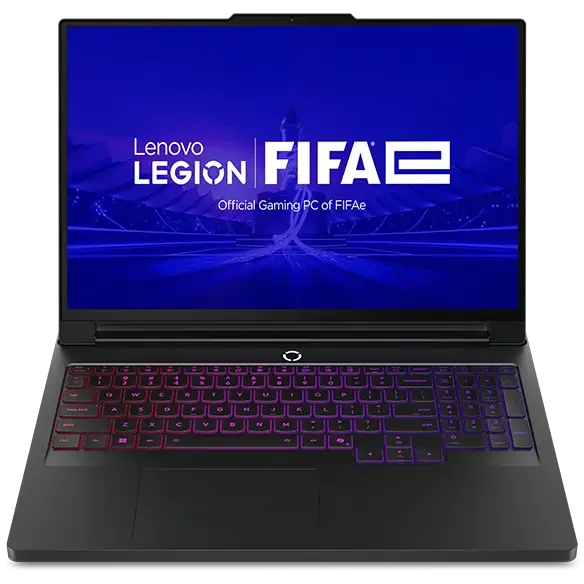
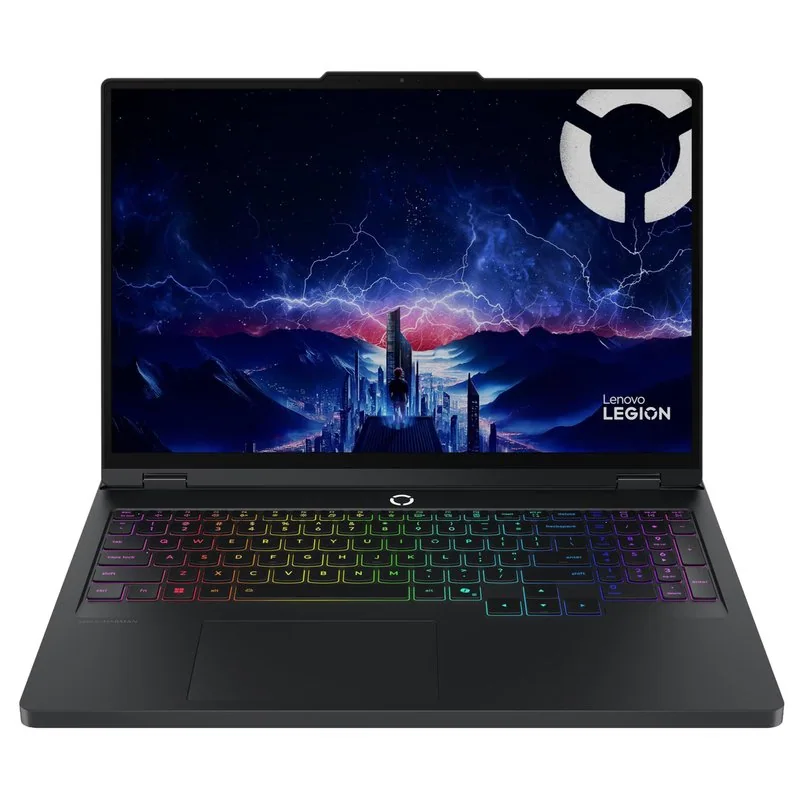
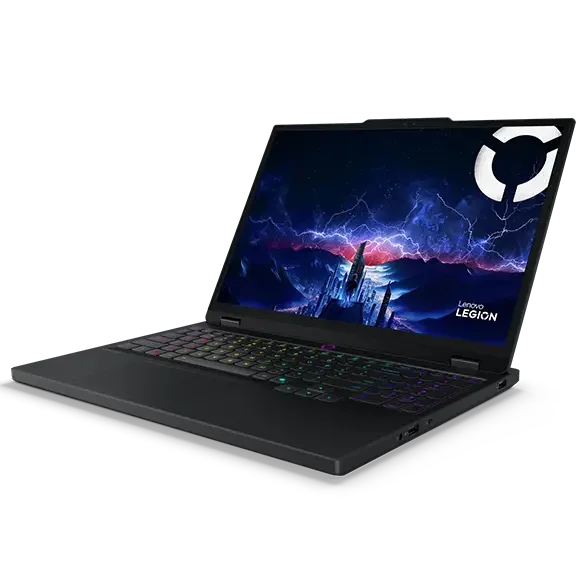
What to know: Pick Lenovo if you want one laptop that can game after hours and still feel normal for classes, writing, and productivity, with clear steps up from under-1000 value (LOQ 15) to sustained AAA play (Legion Pro 7i Gen 10) and a strong midrange OLED option (Legion Pro 5).

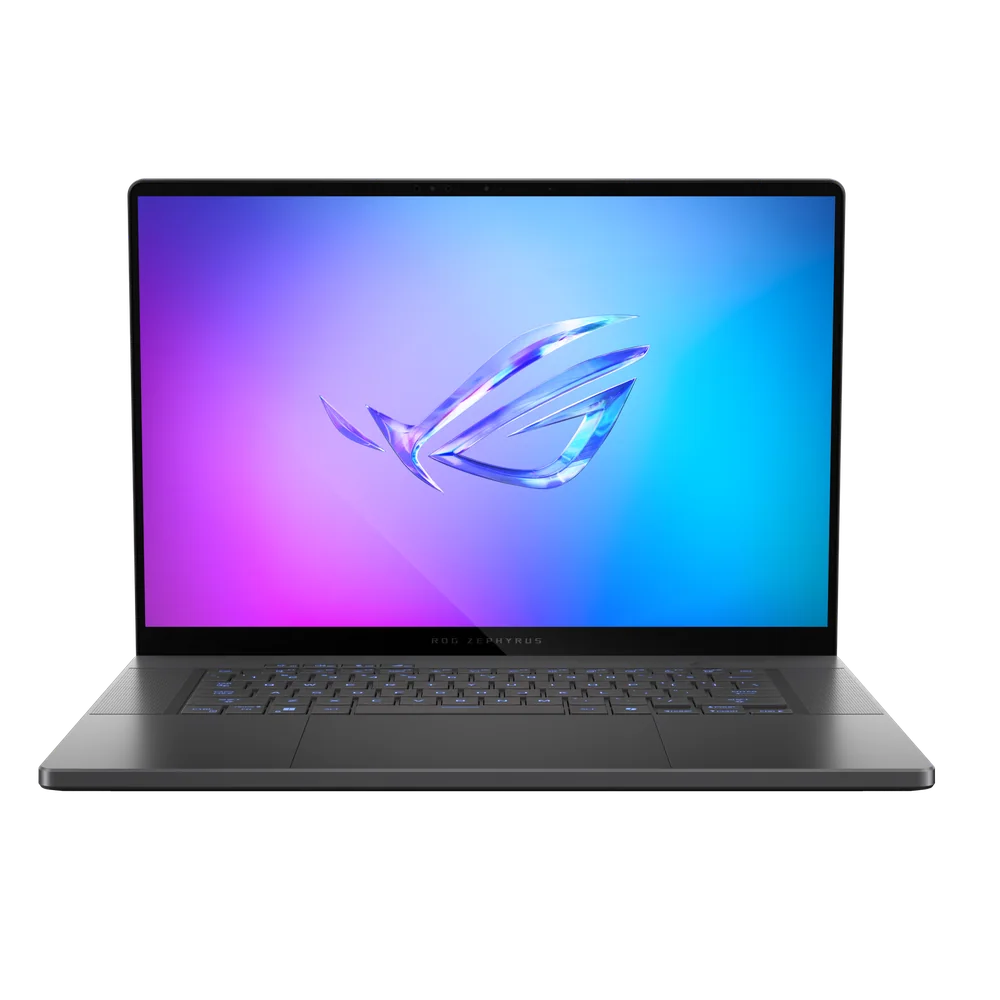
ASUS ROG Zephyrus G14 (2024)
Brand guide

ASUS

ASUS covers both ends of the portability spectrum, from a truly travel-friendly gaming laptop to a premium big-screen setup built for lots of peripherals. It also offers a straightforward budget pick for buyers who want something familiar and easy to choose.

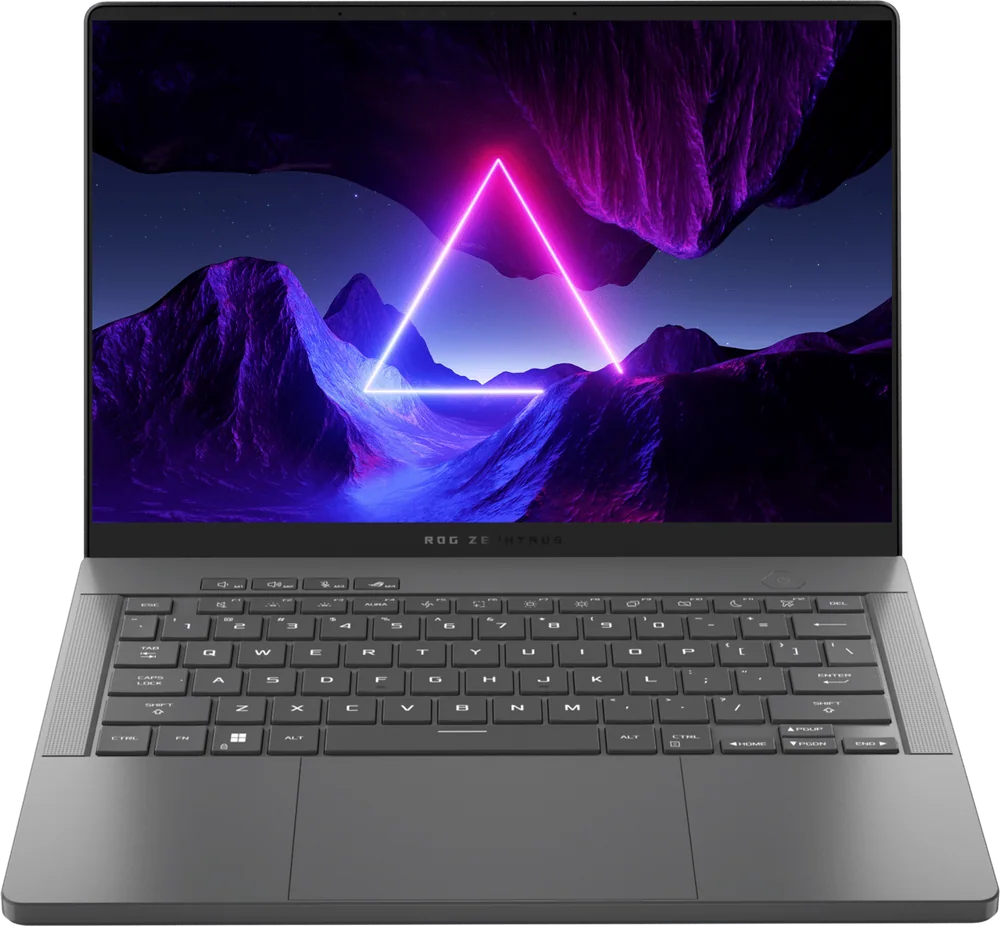
What to know: Choose ASUS if your priority is either carrying your gaming laptop everywhere (ROG Zephyrus G14 2024) or building a polished desk setup around a premium large display and streaming-style accessories (ROG Zephyrus G16 2025), with the TUF Gaming A15 as the simple budget workhorse.

Razer Blade 16 (2026)
Brand guide

Razer

Razer's models in this set are aimed at shoppers who care about premium materials, sleek design, and high-end gaming capability in thinner packages, plus one true desktop-replacement option. These are for people who want their gaming laptop to feel as high-end as it performs.

What to know: Go Razer if you want a luxury-feeling machine that stays comparatively slim while still targeting serious gaming, or if you want a large-screen desktop-replacement experience (Blade 18) and are willing to prioritize premium build and presentation alongside performance.

HP OMEN MAX 16 (2025)
Brand guide

HP

HP's OMEN options here focus on mainstream, do-it-all gaming laptops that can handle demanding games without feeling overly specialized. The range includes value-conscious picks and a model positioned as the broadest fit for most players.

What to know: Pick HP if you want a single, mainstream gaming laptop that can run AAA titles and still behave for everyday tasks, with options that keep spending under control (Omen 15) and a more broadly fitting all-around choice (OMEN MAX 16 2025).

Gigabyte Gaming A16
Brand guide

Gigabyte

Gigabyte's Gaming A-series in this list is about getting solid gaming performance for less, including a variant that calls out usable unplugged time and an 18-inch option that avoids the usual big-screen price jump. It is a value lane that still targets real gaming capability.

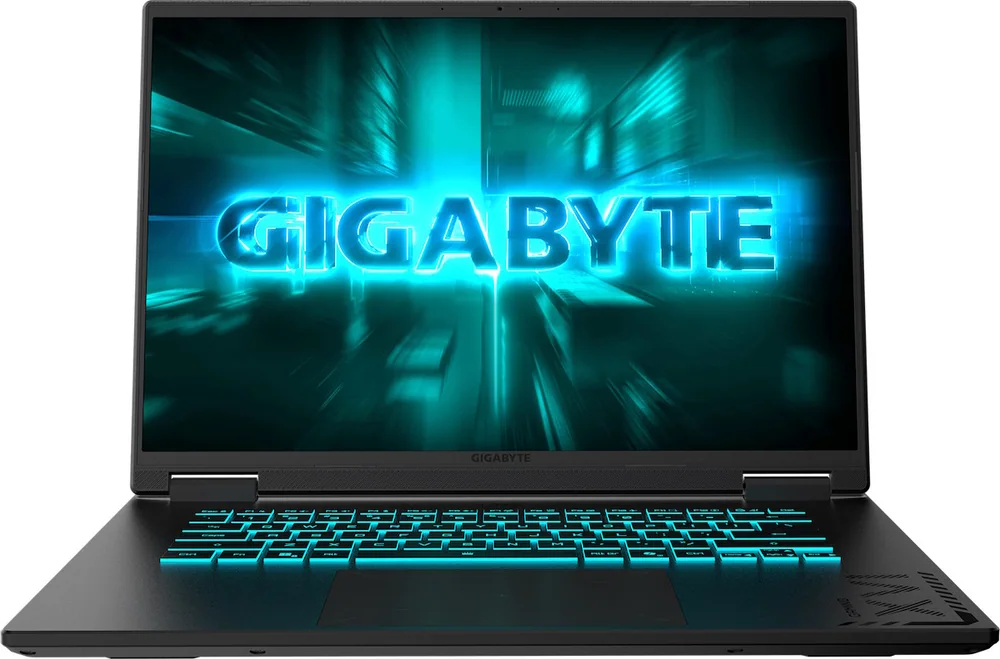
What to know: Choose Gigabyte if you want a lower-cost gaming laptop that does not drop to weak graphics, or if you want an 18-inch screen for streaming-style multitasking without paying the typical giant-screen premium (Gaming A18).

Acer Nitro V 16 AI
Brand guide

Acer

Acer splits cleanly between value entry into PC gaming and a slimmer, battery-life-minded thin-and-light option. These are for shoppers who want gaming capability without paying for a premium chassis, or who want portability with better unplugged expectations than bulky models.

What to know: Pick Acer if you are trying to get into PC gaming on a tighter budget (Nitro V 16 AI) or if you want a slim gaming laptop where battery life matters more than the typical heavy performance build (Predator Triton 14 AI).

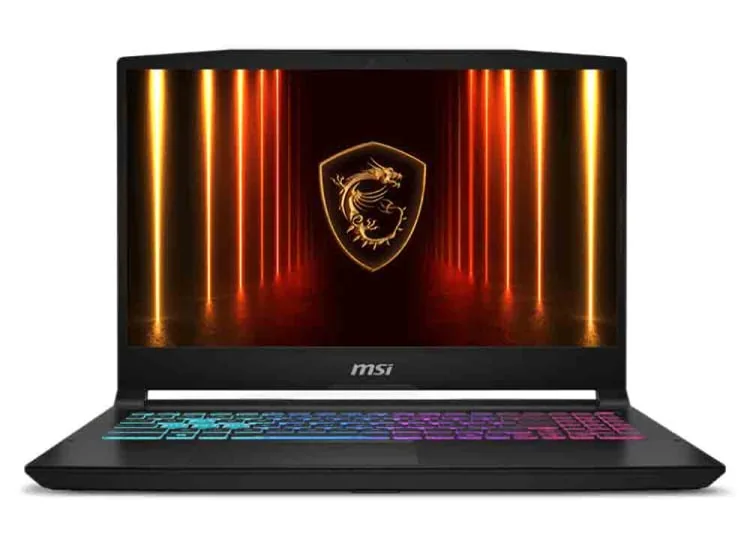
MSI Katana 15 HX
Brand guide

MSI

MSI spans budget-focused 60fps-minded gaming, slim performance-oriented designs, and a top-end big OLED enthusiast machine. The lineup is for shoppers who know whether they want practical settings, portability, or maximum visual impact.

What to know: Choose MSI if you want a sensible budget midrange laptop aimed at smooth 60fps play (Katana 15 HX), a slimmer carry-friendly performance machine (Stealth 16 AI+), or a big, high-impact OLED powerhouse at the enthusiast end (Raider 18 HX AI OLED).

Alienware 16 Area-51
Brand guide

Alienware

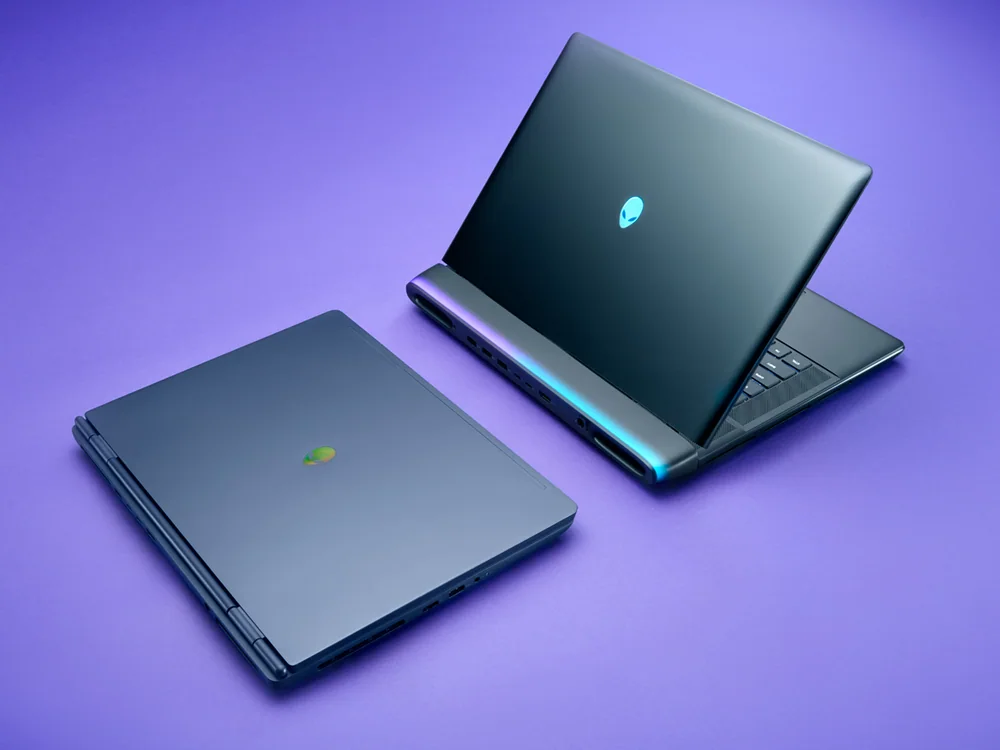
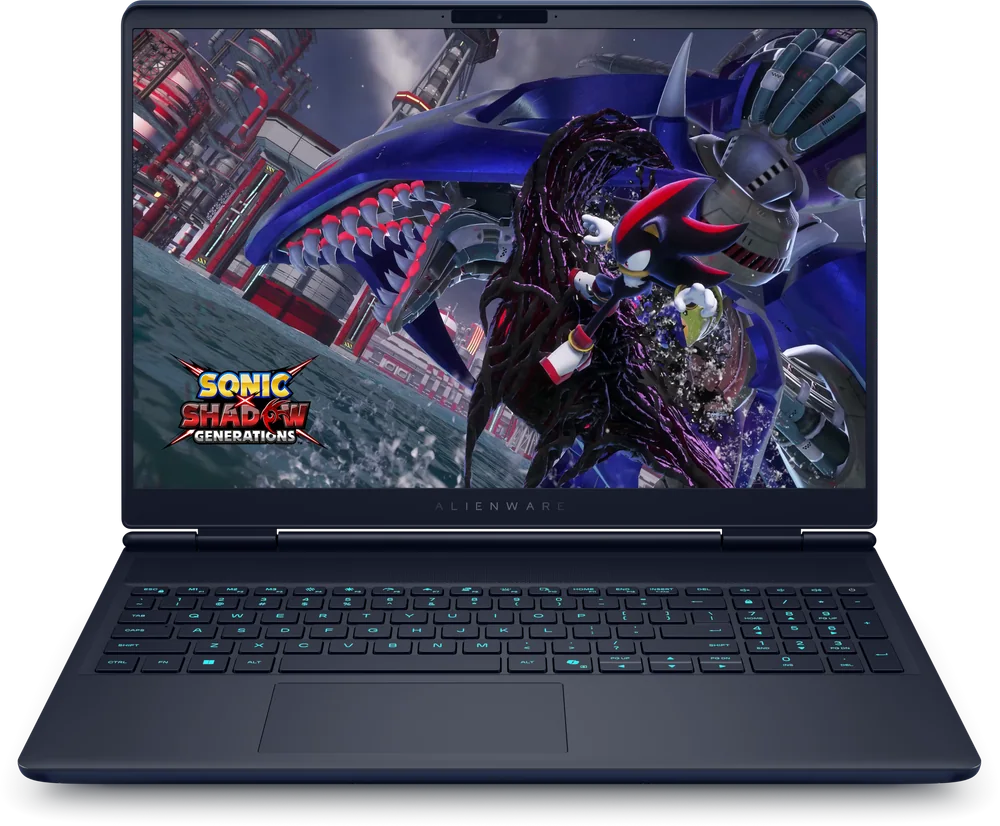
Alienware's picks here lean premium, with an emphasis on high-refresh displays, strong port selection, OLED experience at the flagship end, and a big-screen performance-first desktop-replacement feel. These are for shoppers building a premium gaming setup around the laptop itself.

What to know: Pick Alienware if you want a premium-feeling gaming laptop with a strong display and connectivity for a full desk setup (16X Aurora), an OLED-forward flagship experience (16 Area-51 OLED 2026), or a big-screen performance-first machine (m18 R2).

How to Choose a Gaming Laptop

  • GPU and its power limit: Two laptops with the same GPU name can perform very differently if one allows higher sustained power and has cooling to match.
  • Display refresh rate and response time: High refresh helps competitive games feel smoother, but slow response can still look blurry in motion even at high Hz.
  • Cooling design and sustained performance: Better cooling usually means steadier frame rates and less throttling, but it can also mean more size, weight, and fan noise.
  • Ports and external display support: If you plan to dock, stream, or use a high refresh external monitor, the wrong port setup can bottleneck your whole desk.

Gaming Laptops FAQ

Should I buy a 14-inch or 16-inch gaming laptop?

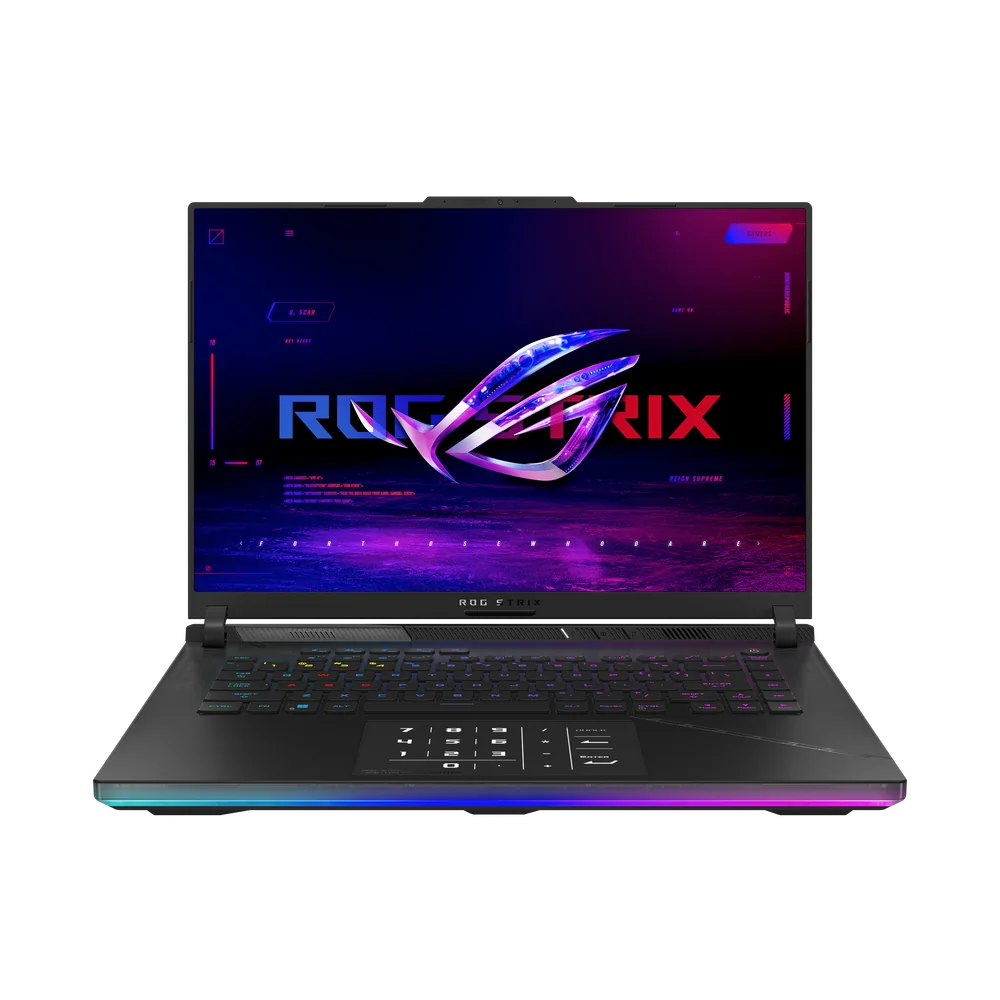
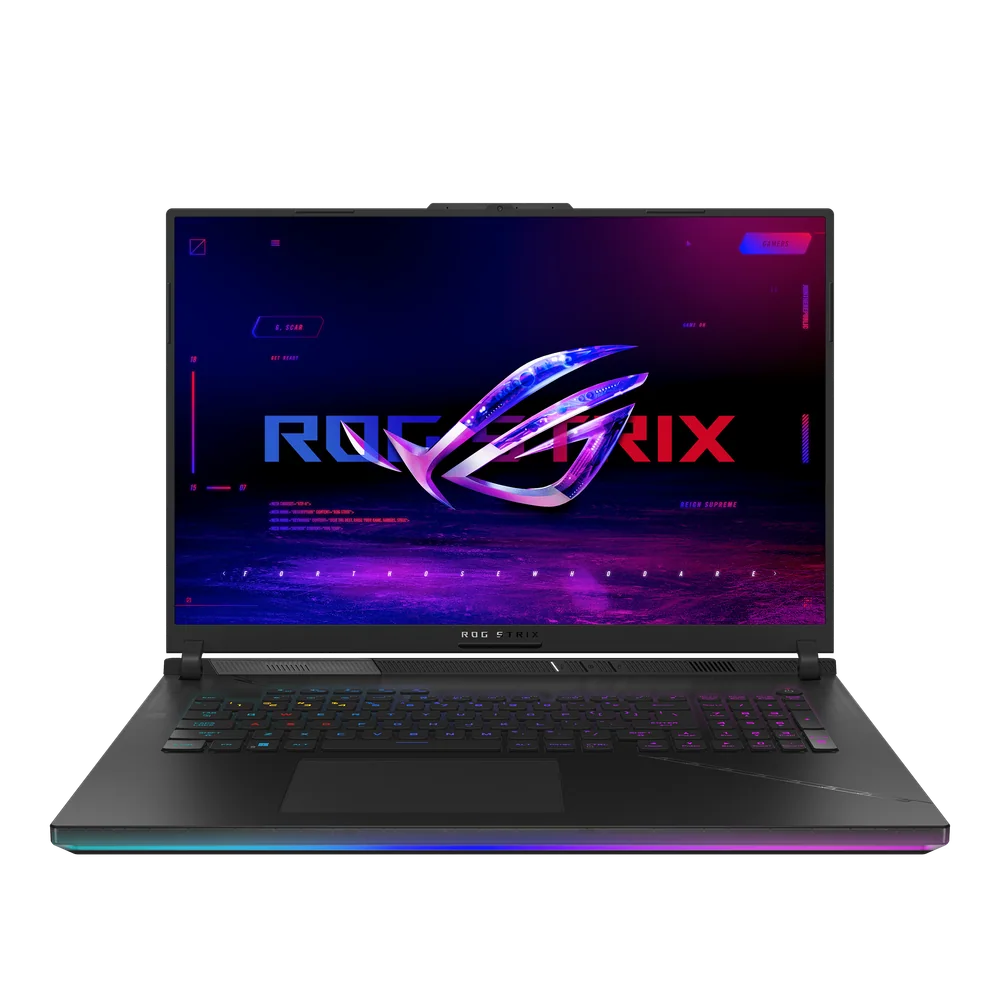
Choose a 14-inch model like the ASUS ROG Zephyrus G14 (2024) when you carry your laptop often. Go 16-inch when you want a bigger screen and more room for higher-power configurations, like the HP OMEN MAX 16 (2025) or Asus ROG Strix Scar 16.

Is 165Hz enough, or should I look for 240Hz?

165Hz is plenty for most players and a great match for 1080p and 1440p gaming. 240Hz makes the most sense if you play fast esports titles and want the smoothest motion you can get, assuming your GPU can keep frame rates high.

What is the safest budget gaming laptop choice here?

The Acer Nitro V 16 AI is the most straightforward budget-leaning recommendation because it targets smooth 1080p and 1440p gaming and offers 165Hz G-SYNC display options. If you want a cheaper, simpler mainstream gaming machine, the MSI Katana 15 HX focuses on smooth 60fps play.

Which gaming laptop here works best for school or office work too?

The Lenovo Legion 5i Gen 10 is the best balanced choice when you want gaming performance and a nicer everyday experience, especially with its OLED panel. If you want a more traditional premium productivity laptop with some gaming capability, the Dell XPS 14 (2026) fits that crossover role.

When is it worth paying for a premium gaming laptop?

Pay more when you want enthusiast-level performance and a higher-end screen, like the Asus ROG Strix Scar 16, or when you care about a luxury build and daily-carry feel, like the Razer Blade 16 (2026). If you mainly want smooth gameplay at sensible settings, the value and budget models will get you there.

Can a gaming laptop actually last all day on battery?

Some can for non-gaming tasks, but gaming laptops usually drop fast when you play unplugged. If you need long unplugged time for work or school and only occasional gaming, a battery-first crossover like the Dell XPS 14 2026 can be the better fit.